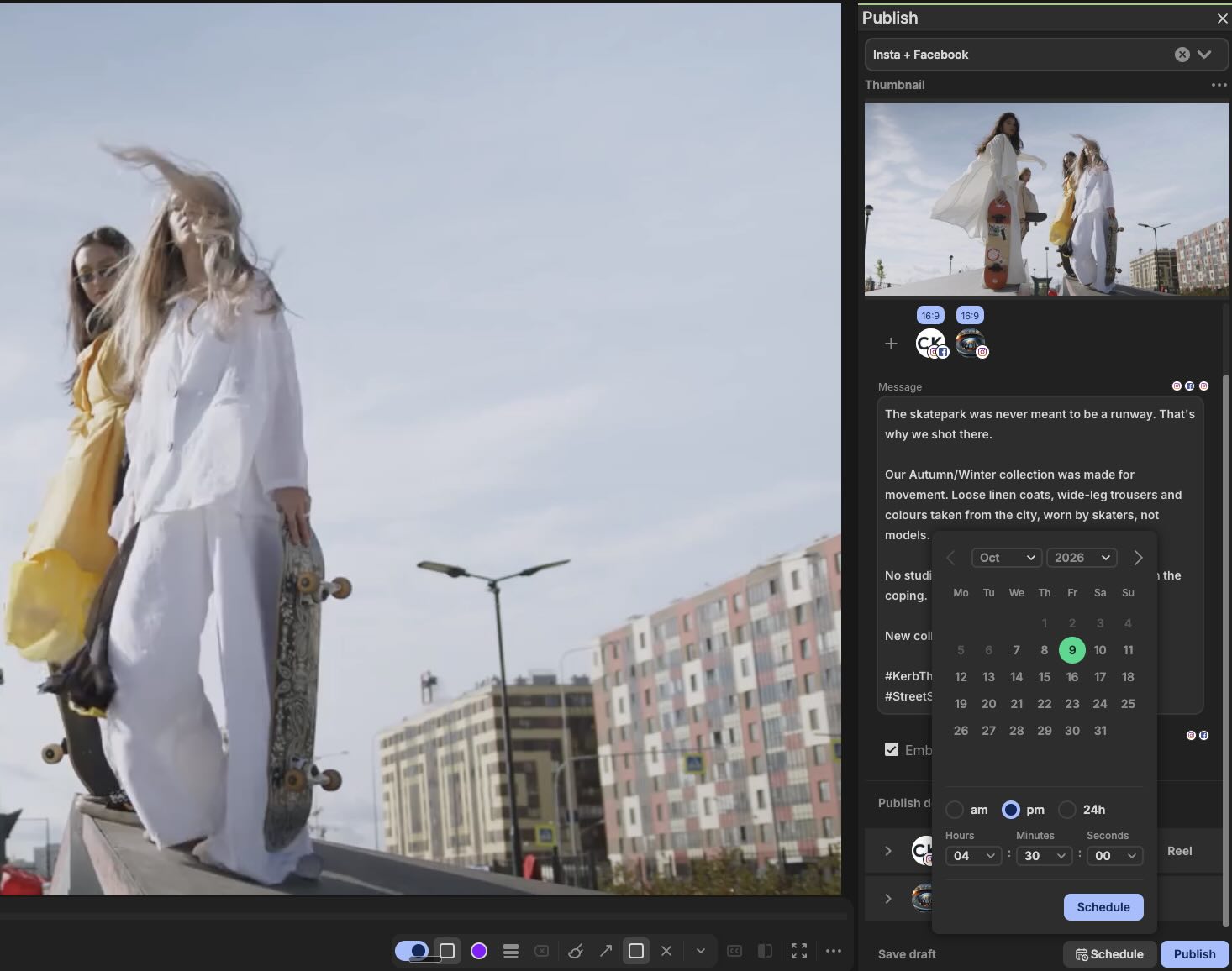
Publish Panel: Schedule posts to share them later
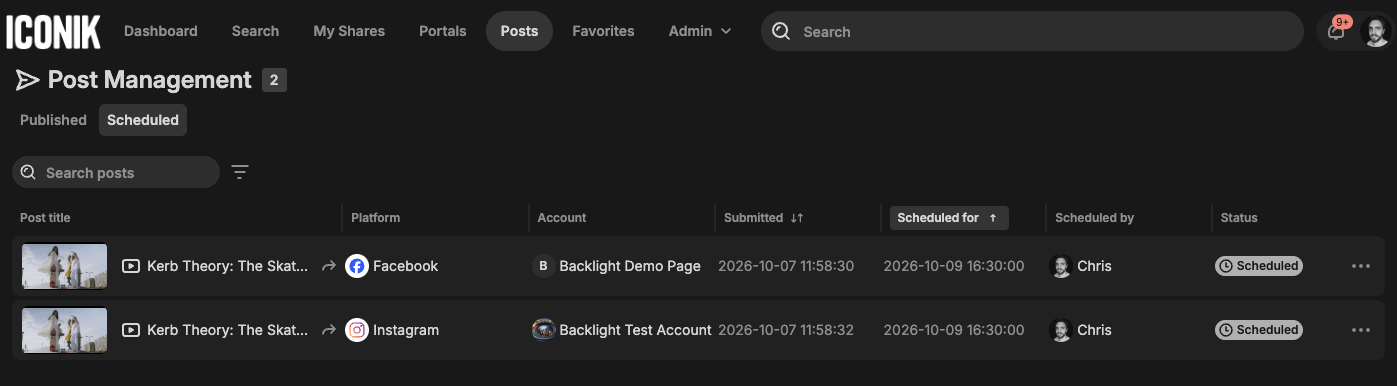
Schedule your posts instead of pushing them live in the moment. Pick a date and time, and Iconik publishes to every selected destination when the time comes. Scheduled posts appear in a Scheduled Posts tab on the Posts page, where you can edit the time, swap the destination, or cancel before it goes live, and you're notified when the post is published or if it fails. One person prepares, another signs off, and nothing goes live until it should.
Publish Panel: Save drafts before posting them live
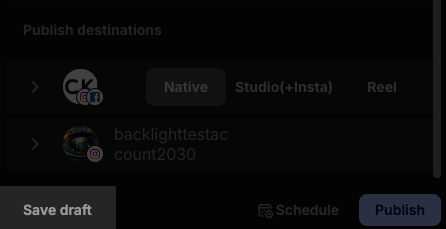
Publishing no longer has to be a commit-on-the-spot decision. Save your publication as a draft and it becomes a Clip, so you can open it in Wildmoka to refine it and route it through Iconik's review and approval workflow before it goes anywhere. Once it's approved, publish it to its pre-configured destination in one click.
Publish Panel: Publish as-is: deliver the file you already prepared
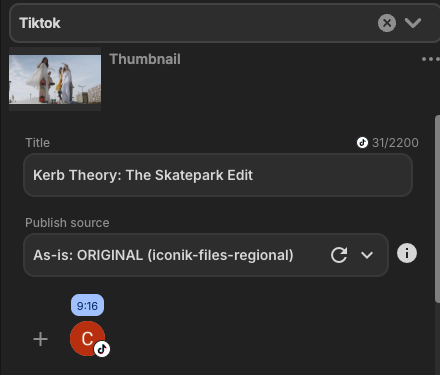
This covers teams that have already rendered an asset to a destination's exact spec and need it delivered untouched, rather than having Wildmoka render it for you. A new Video Source option in the Publish Panel now lets you choose a specific format — Original, Edit Proxy, or Proxy — and deliver it to the destination without transcoding or processing. Choosing as-is deliberately turns off everything that would change the video: the output rendition is locked to the source, and aspect ratio, template overlays, decorators and burned-in subtitles are all disabled (sidecar subtitles still work).
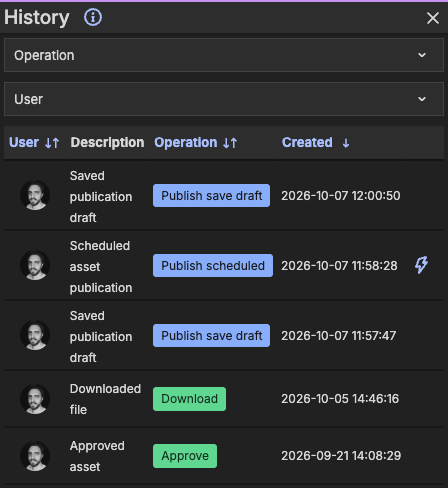
Publish activity in the asset History panel
Your asset History now has a complete record of an asset's publishing activity, so when someone asks "was this published, and by whom?", the answer is on the asset itself. Every time an asset is saved as a draft, scheduled, or published from the Publish Panel, the action now appears in that asset's History panel alongside its other history entries. Each entry shows who did it and when, and links to the job so you can open it for full details. Anyone who can already see an asset's History can see these entries.
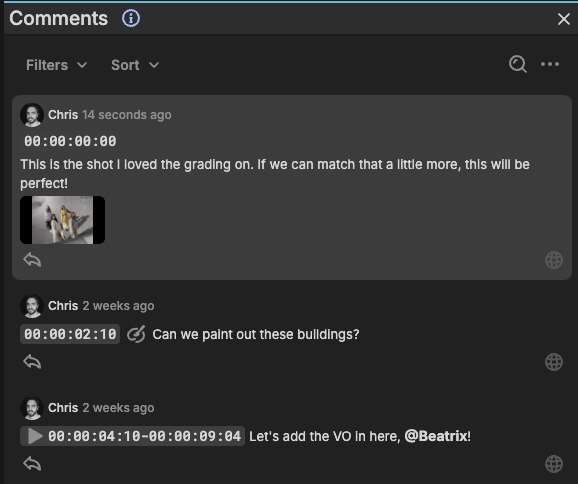
Attachments on comments
Reviewers can now attach files to comments on a share and assets in Iconik — a reference image, a sketch, a piece of artwork — either while writing the comment or by editing it afterwards. The note about what needs to change and the file that shows what it should look like now live in the same place, so feedback doesn't get split across email threads.
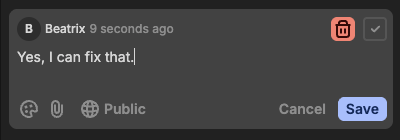
Fix your comments on a share, no login needed
A user or collaborator who leaves comments on a share without signing in (an unauthenticated user) can now edit or delete the ones they added. A typo, a wrong timecode or a comment posted by mistake no longer sticks around for the whole team to see.
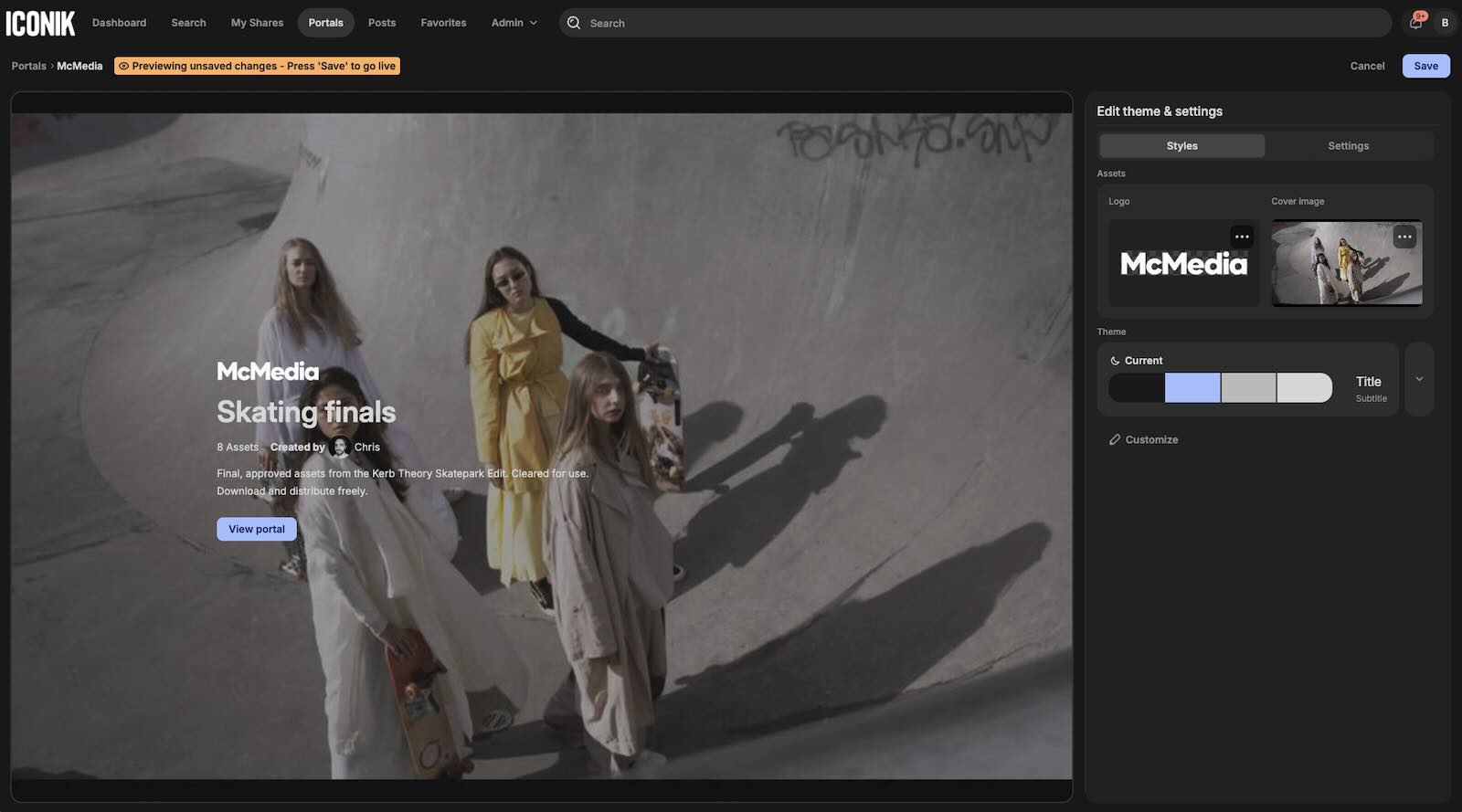
Brand Portals: save your logo once and add it to your theme
Brand Portals now keep your branding with you. You can save your logo as a theme, so the next portal that uses it starts with your logo already in place. We also improved logo placement on cover pages, and there's a new font to choose from, Plus Jakarta Sans, so a portal can look more like the rest of your brand.