.svg)


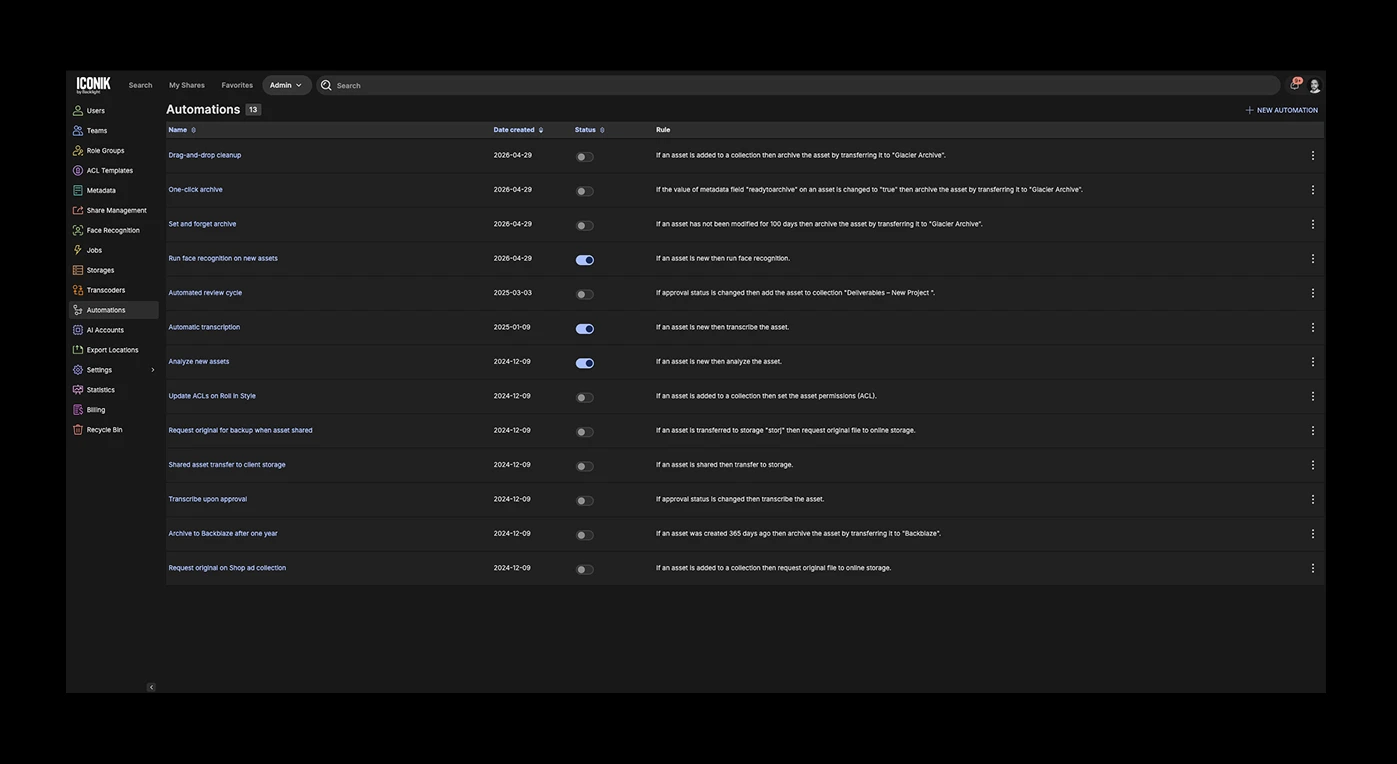
Table of contents

When a shoot wraps, the clock starts ticking. The faster footage reaches your edit servers, the faster editors can start shaping the story. Camera cards sitting in backpacks or files waiting on manual transfers don't just slow things down; they stall the entire creative process.
What production teams need is a direct pipeline: contributors drop footage in, and it's instantly centralized where it's safe, organized, and accessible. No waiting, no handoffs, no lost momentum: just content flowing straight to where editors can use it.
With Iconik's Automation Engine and Iconik Storage Gateway (ISG), that pipeline is straightforward to build. Uploads move from the field to your on-premise servers automatically and securely, so editors can start the moment they sit down.
The problem: The gap between upload and edit
In media production, the gap between "camera stops recording" and "editor starts cutting" can make or break a project timeline. The pattern is familiar: contributors upload footage to cloud storage, editors track it down and manually transfer it to their servers, and then everyone waits hours for downloads to complete.
Creative time gets squeezed while deadlines keep advancing. If a shoot wraps late on Friday, an editor can spend Monday morning watching a progress bar instead of shaping the story.
The solution: Automated upload-to-on-prem workflows
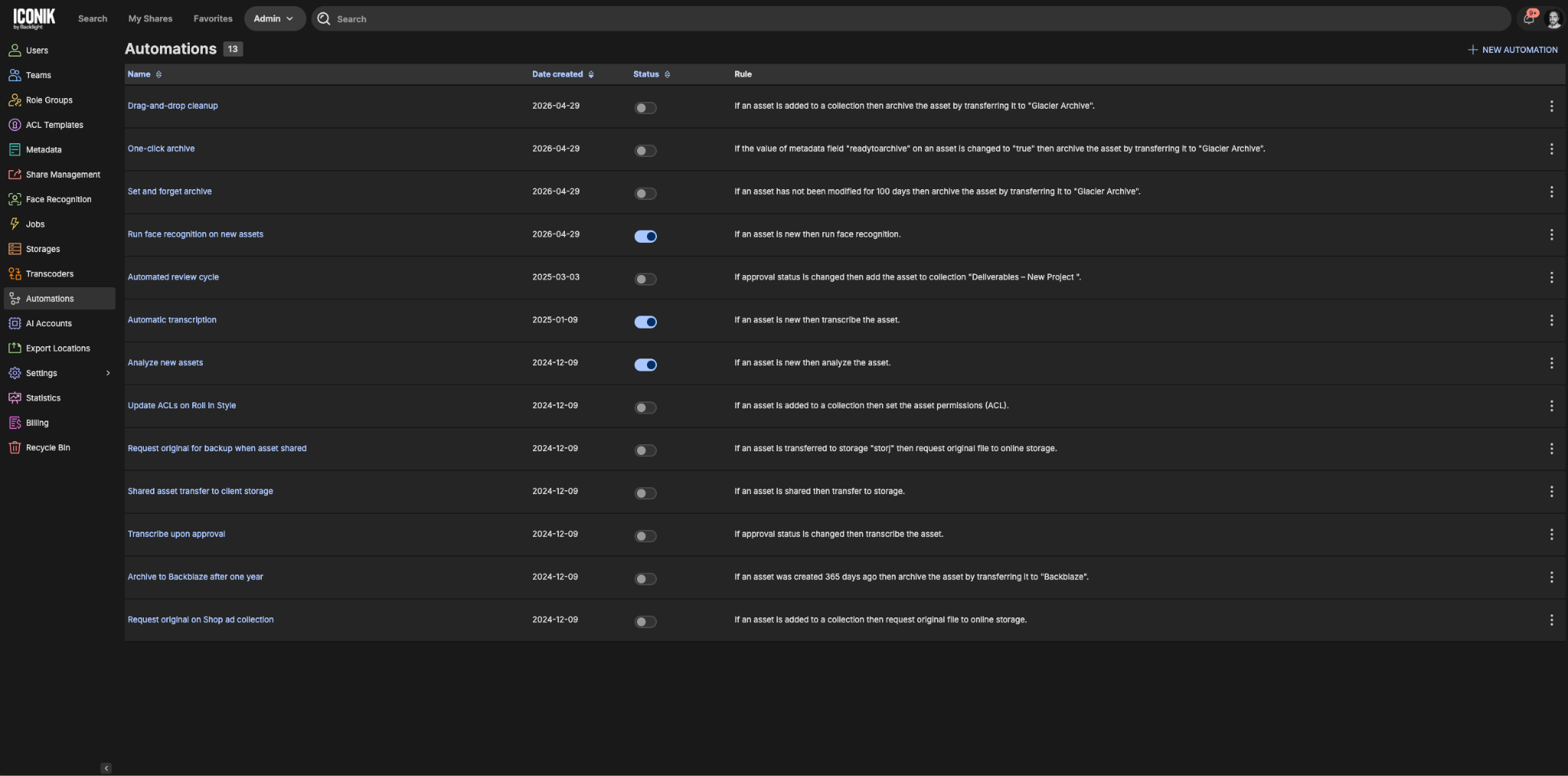
Iconik's Automations remove the dead time between upload and edit. Automations work on a simple "if this, then that" logic: you define a trigger and the system performs a subsequent action automatically. No manual intervention, no developer dependency, just a workflow you configure once and let run.
Automations work in tandem with the Iconik Storage Gateway (ISG) — software that runs on your local infrastructure and acts as the bridge between Iconik's cloud platform and your on-premise servers, keeping originals exactly where they belong while making them accessible through Iconik's cloud interface.
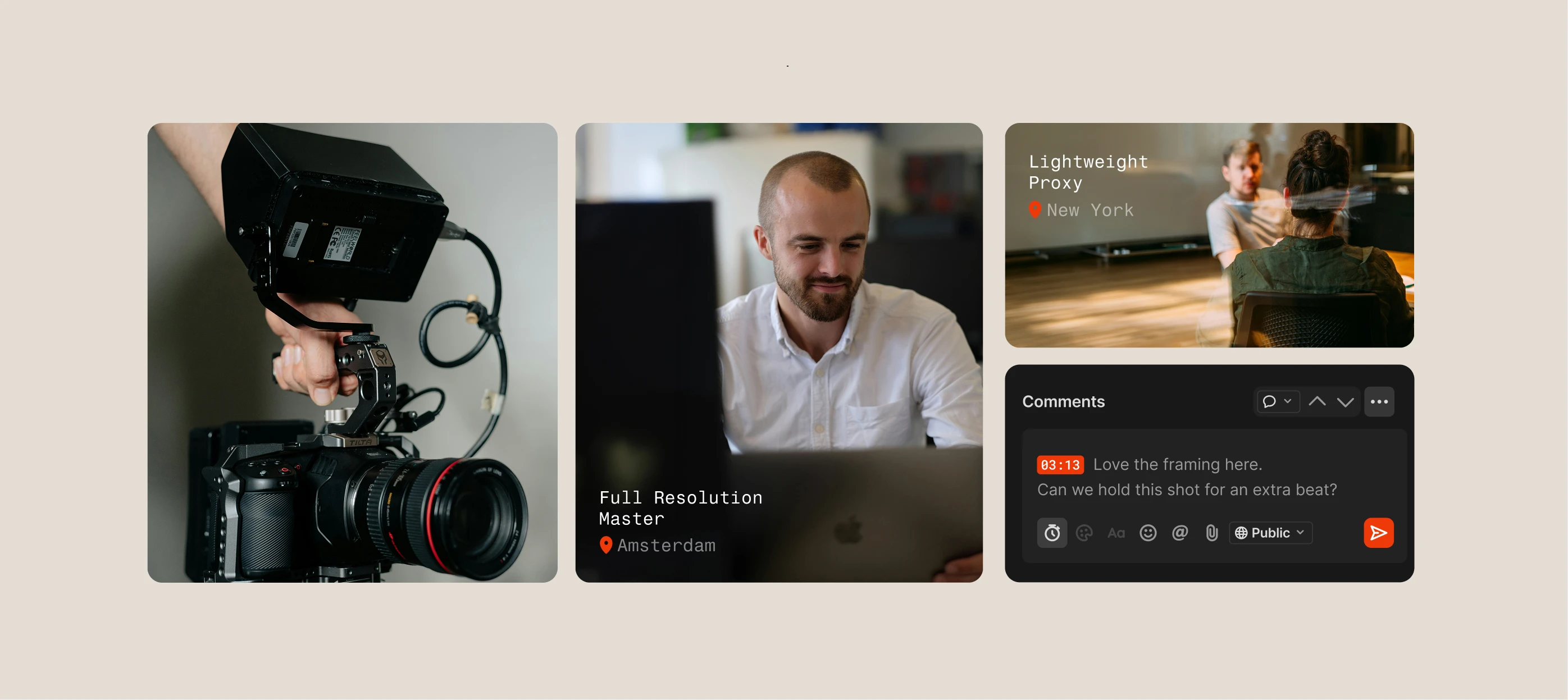
Together, they let you build a direct pipeline from the field to your on-premise storage: files land on your servers. A remote upload triggers an automation, which transfers the file directly to your ISG storage. Everything runs in the background. And content is automatically ready for editors the moment they open their NLE.
Contributors upload; editors find the originals waiting exactly where they expect them, when they need them.
Let’s take a look at this in detail.
Step-by-step: Setting up your automated ISG workflow
Key components
- Automation rules: Configurable triggers and actions that execute when specified conditions are met
- Iconik Storage Gateway (ISG): Software that indexes and manages on-premise storage locations within Iconik's cloud interface
- Collection-based organization: Folders within Iconik that serve as designated upload destinations with specific permissions and sharing settings
Before building the automation, confirm you have an active ISG running. The ISG is the bridge between Iconik's cloud platform and your local storage. If you haven't set one up yet, follow these steps to connect your on-premise storage to Iconik.
Step 1: Configure your upload collection
- Create a collection in Iconik (e.g., "Remote Uploads")
- Set permissions and share with contributors
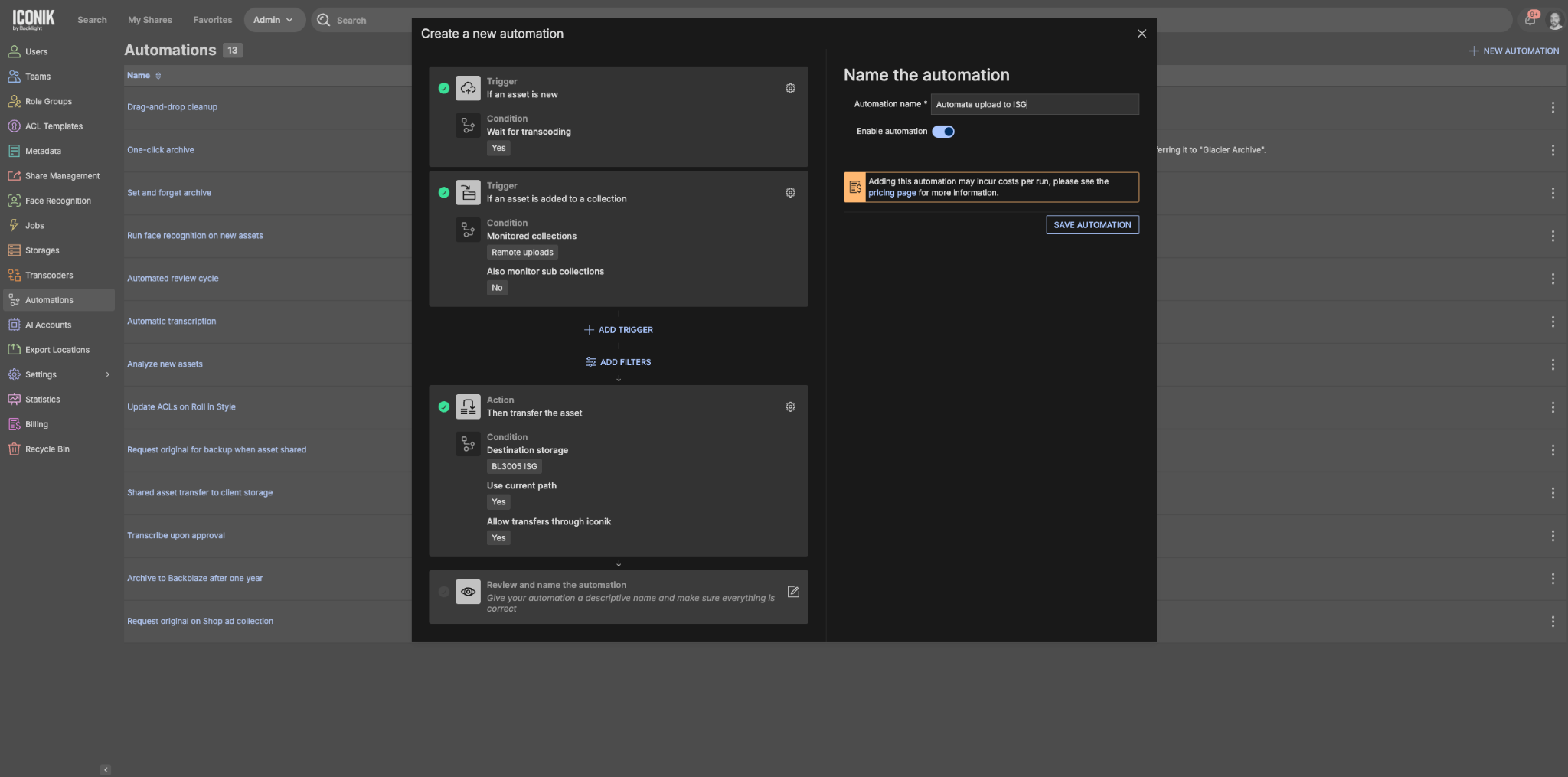
Step 2: Create the automation rule
- Navigate to Admin > Automations
- Create a new automation
- Add trigger 1: "Asset is new"
- Add trigger 2: "Asset is added to collection" — select the collection created in Step 1
- Add action: "Transfer Asset"
- Select your destination: choose the ISG-connected storage you want to transfer to
- Save and activate the automation
Step 3: Test, refine, and scale
- Upload a test file to your designated collection in Iconik via your browser or the Iconik Agent
- Verify the automation triggers and transfers the file to your on-premise server
- Adjust settings as needed
- Build additional automations for different workflows or routing rules
Why this matters
The impact shows up immediately and across the whole team. Content is ready the moment the creative team is, not hours or days later, which means editors spend their energy shaping the story, not moving files around. Contributors can upload from anywhere via a secure share link, with no VPN or server login required. Uploads happen through password-protected shares, so contributors never touch your wider infrastructure. And because automations handle the routing, you can mirror folder structures or run selective transfers to match exactly the way your team works, without anyone having to manage it manually.
Real-world applications
The same workflow adapts across production contexts. A reporter in the field uploads breaking footage via Iconik Agent: within minutes, it's on newsroom servers and ready to cut. Documentary crews on international shoots upload dailies overnight; by the time editors in another time zone start their day, the footage is already waiting. Sports camera operators at remote venues upload highlight reels on the spot, giving production teams back at HQ immediate access to cut key plays.
Beyond basic automation
The ISG workflow is a foundation, not a ceiling. Once it's running, you can build on it:
- AI-enhanced processing: Combine upload automation with Iconik's AI capabilities to automatically tag, transcribe, and index content as it arrives
- Multi-stage workflows: Set up cascading automations that move content through different server locations based on approval status or editorial progress
- Backup and archive integration: Extend the workflow to automatically create backup copies or move older content to archive storage based on age or usage
Manual file transfers are a solvable problem. With contributors uploading through Iconik Agent and files routing automatically to ISG storage, the gap between shoot and edit closes, and your team gets that time back for the work that actually matters.
Where to start:
- Confirm your ISG is active and connected before building automations — setup guide here
- Start with a single upload collection and one automation rule; add complexity once the core workflow is proven
- Test with a non-critical file before rolling out to contributors

Bryan Nelson is Director of Customer Enablement at Backlight with over 15 years of experience in media technology. He specializes in helping organizations adopt and scale the tools and technologies that power production and post-production workflows. He leads the Customer Enablement team, which specializes in product onboarding, training, and best practice consultation.