.svg)


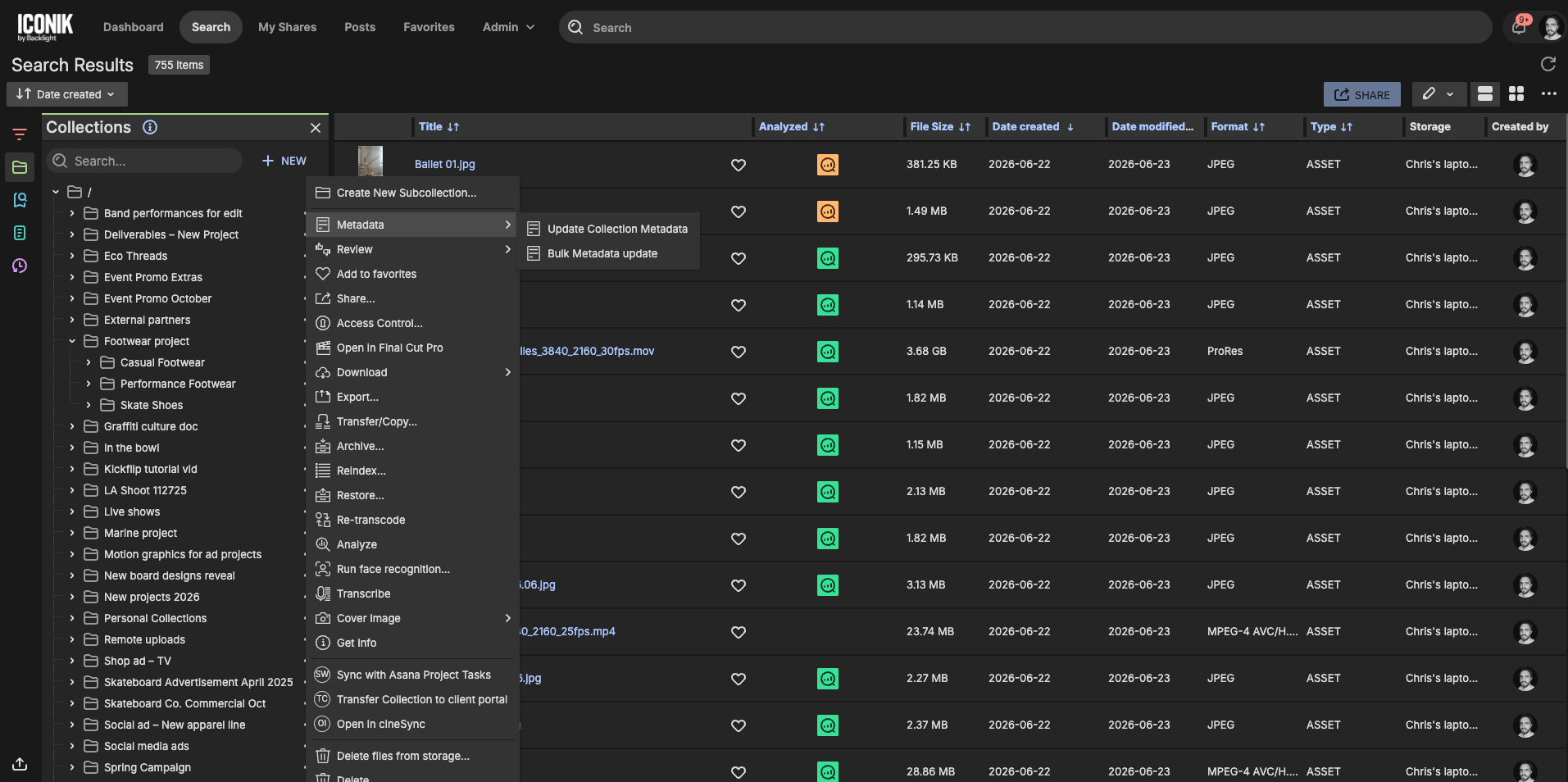
Table of contents

Let's consider a scenario: the license on a batch of footage ended Friday, and the rights status on every one of those assets needs to say so by Monday. They're spread across a dozen collections and two storages. You could open each asset and change the field. You could also lose your week to it.
Every library hits this wall eventually: more assets than anyone can touch by hand, and metadata that's still sitting in a spreadsheet, a delivery folder or someone's head. Iconik gives you four ways through, depending on where the metadata is today.
The license ended Friday: update a set of assets at once
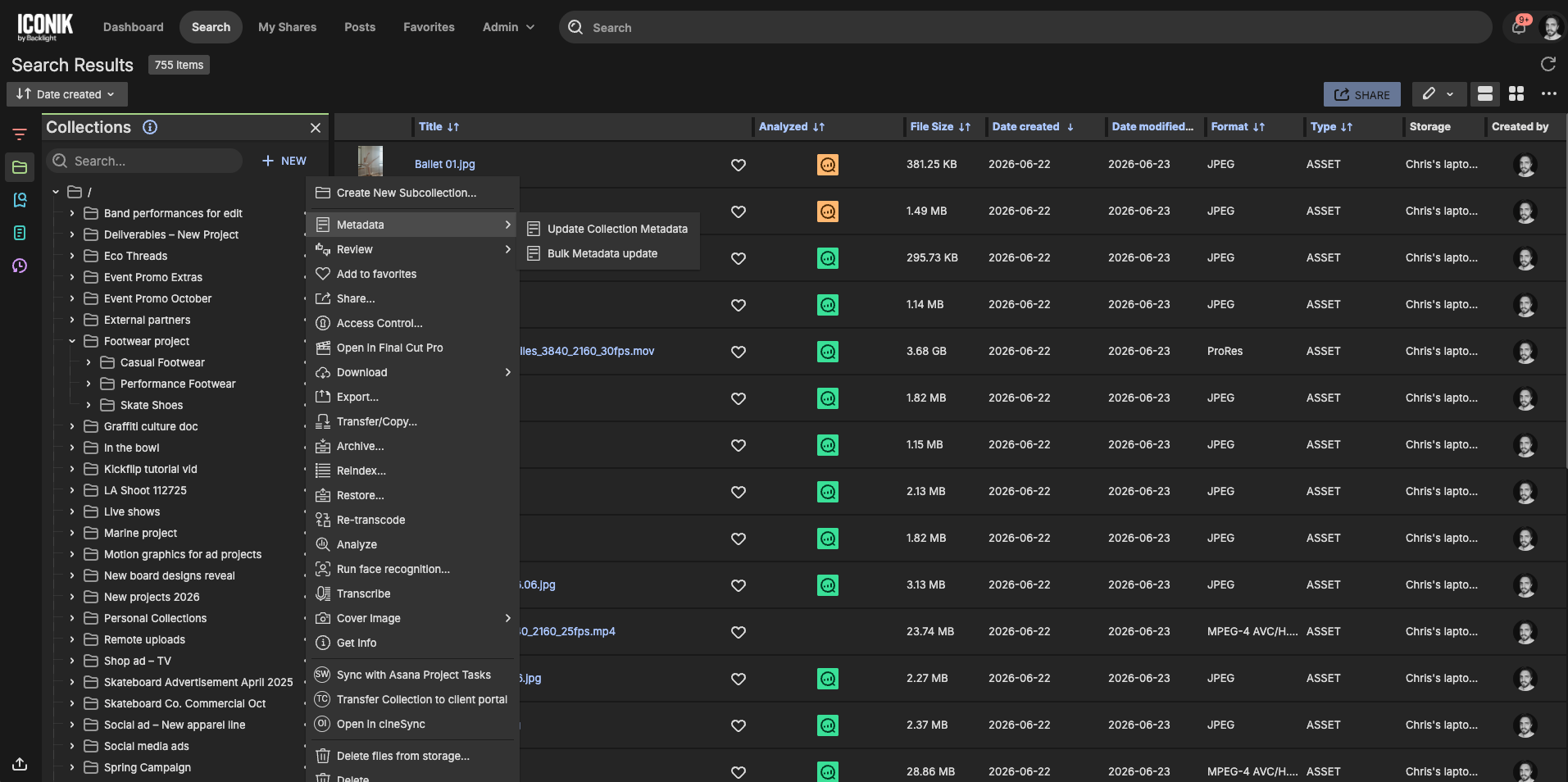
Let's consider some different approaches to the problem. We'll start with a set you can see. On the Iconik search page, you can select the assets (Shift for a range, Ctrl on Windows or Cmd on macOS for individual ones), right-click and choose Update Metadata, set the fields and press Update. To update everything in a collection, open its three-dot menu, select Metadata and then Bulk Metadata Update. Pick the fields, set the values and a bulk job appears so you can watch it run.
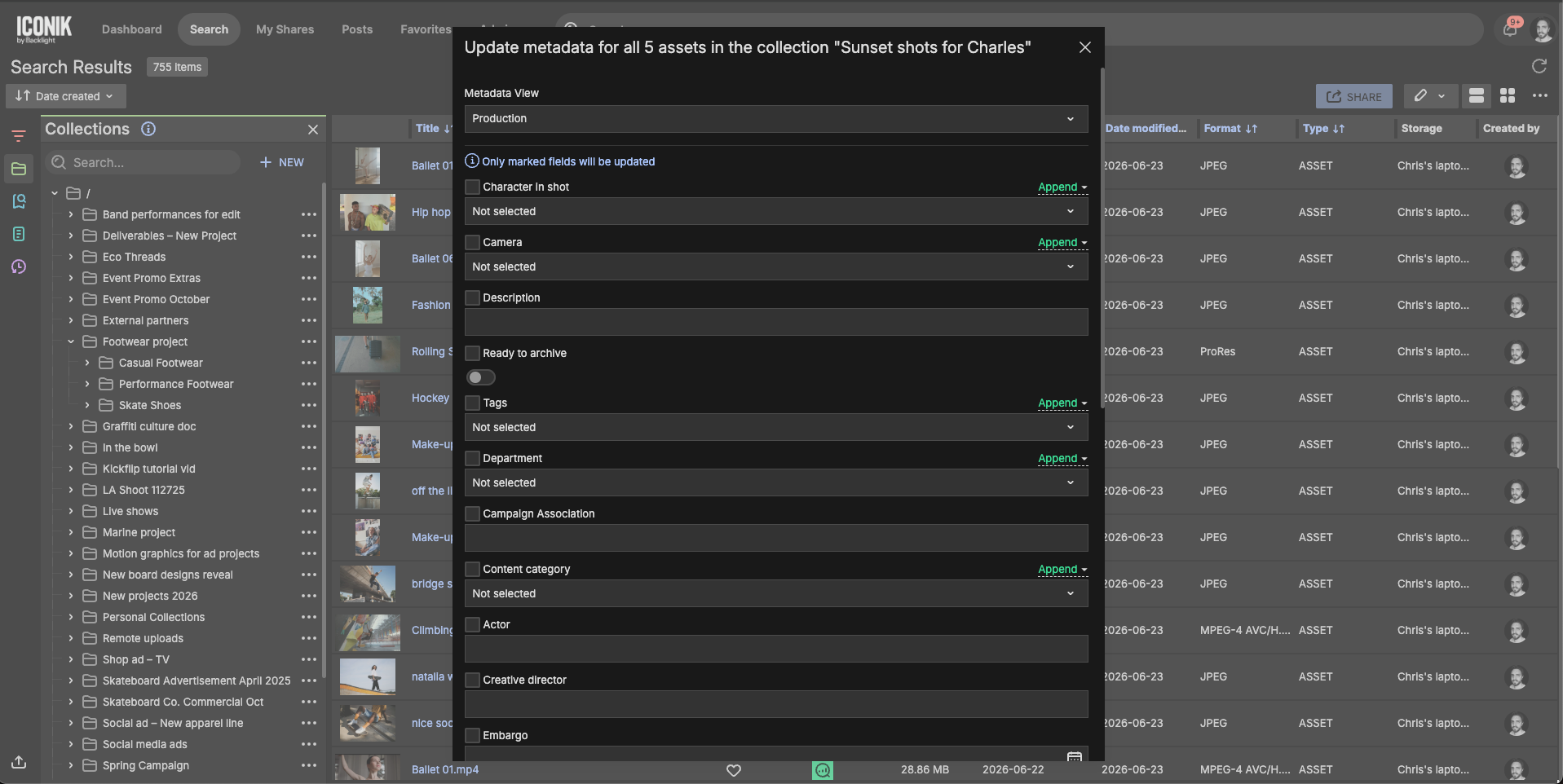
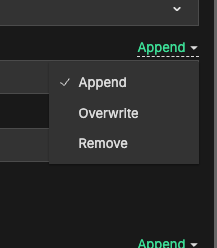
Know one thing before you press Update: it replaces whatever is already in a field on assets that have it filled in, except for tag fields. For tag, text, text area fields, and dropdowns you also choose how the values are applied:
- Append adds the new tags or text alongside what's already there.
- Overwrite replaces the existing tags or text. If you clear the text, the field ends up empty.
- Remove takes out the tags you list, and skips assets that don't have them. It's for tags only.
Append is the safe choice when you're not sure what's in a field. Overwrite is faster when you're making a clean correction.
Bulk updates apply to assets only; sub-collections inside the collection aren't touched, and collection metadata is updated individually or through the API. Selecting assets directly handles up to 100 at a time, so for anything larger use a saved search, which is next. You'll also need the asset, search, can read collection and can write collection roles to run these updates. If the option is missing for someone, check their Role Group.
Learn more about bulk editing metadata.
The assets are all over the place: let a saved search do the scoping
Imagine Friday's assets aren't in one collection. They're across projects, storages and ingest dates. Still, there's a way to make the bulk updates using a saved search.
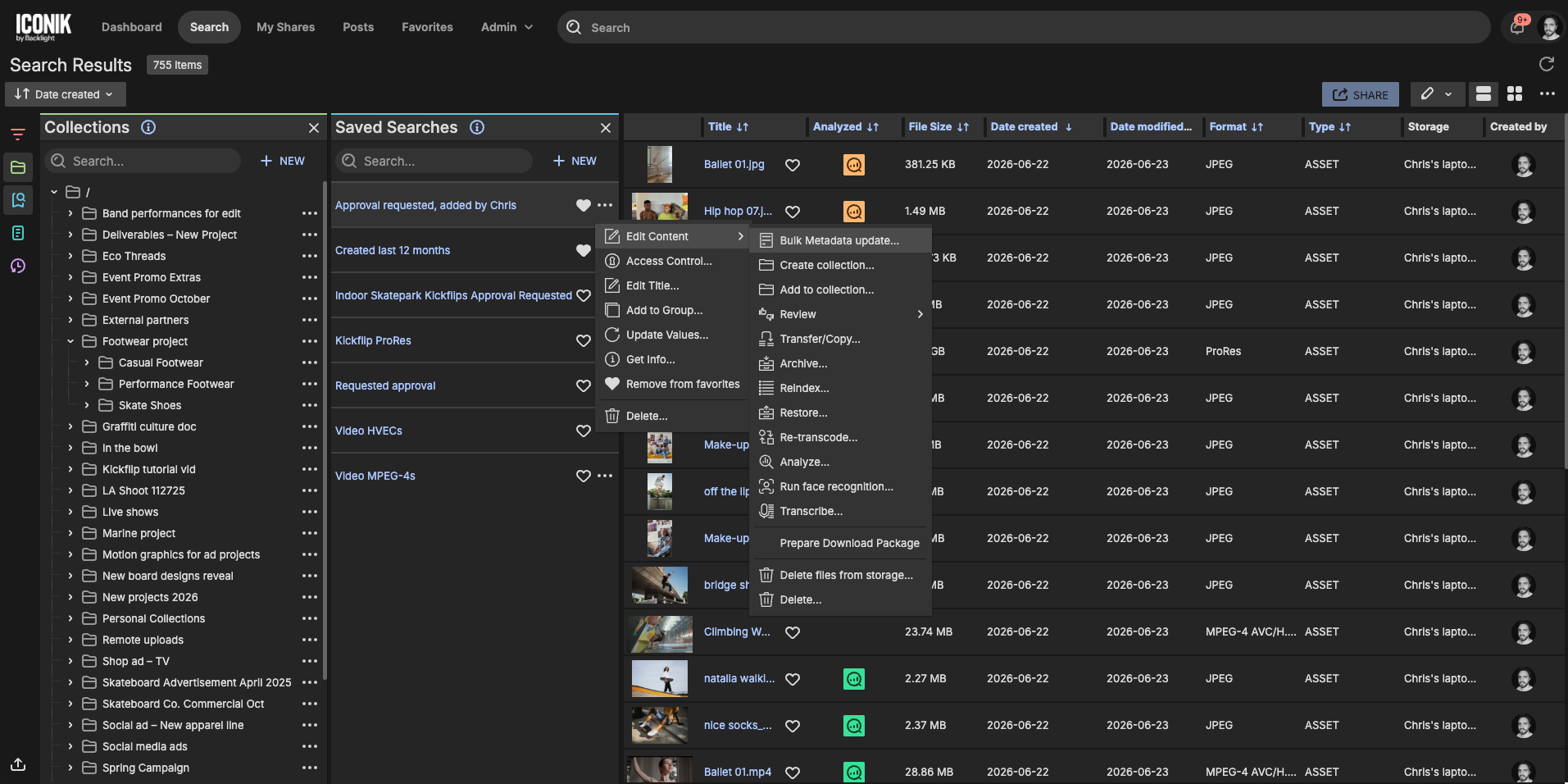
Build a search from the filters that describe the assets you need (creation date, file type, an existing metadata value, who uploaded them) and save it. Then open the saved search's three-dot menu, select Edit Content and then Bulk Metadata Update. You get the same field picker, and the update runs across every asset the search returns, with no practical limit on how many.
A saved search is also the version you'll reuse. The next time a license ends or a project code changes, the search is already the scope; you don't need to rebuild it.
A delivery arrives with its own metadata files: read them at ingest
Sometimes the metadata isn't something you need to change. It's something you've been sent. A partner delivers footage with a metadata file per clip, or you're moving off another system and can export its metadata as structured files. Rather than apply it after the fact, let Iconik read it as the files arrive.
A sidecar file lives next to the media and shares its name. When Iconik scans a storage and finds a matching pair, it reads the sidecar and fills in the asset's metadata fields. The file can be XML, CSV or JSON, and the name matches either by replacing the original extension or by adding to it:
- filename.mp4 → filename.json
- filename.mp4 → filename.mp4.xml
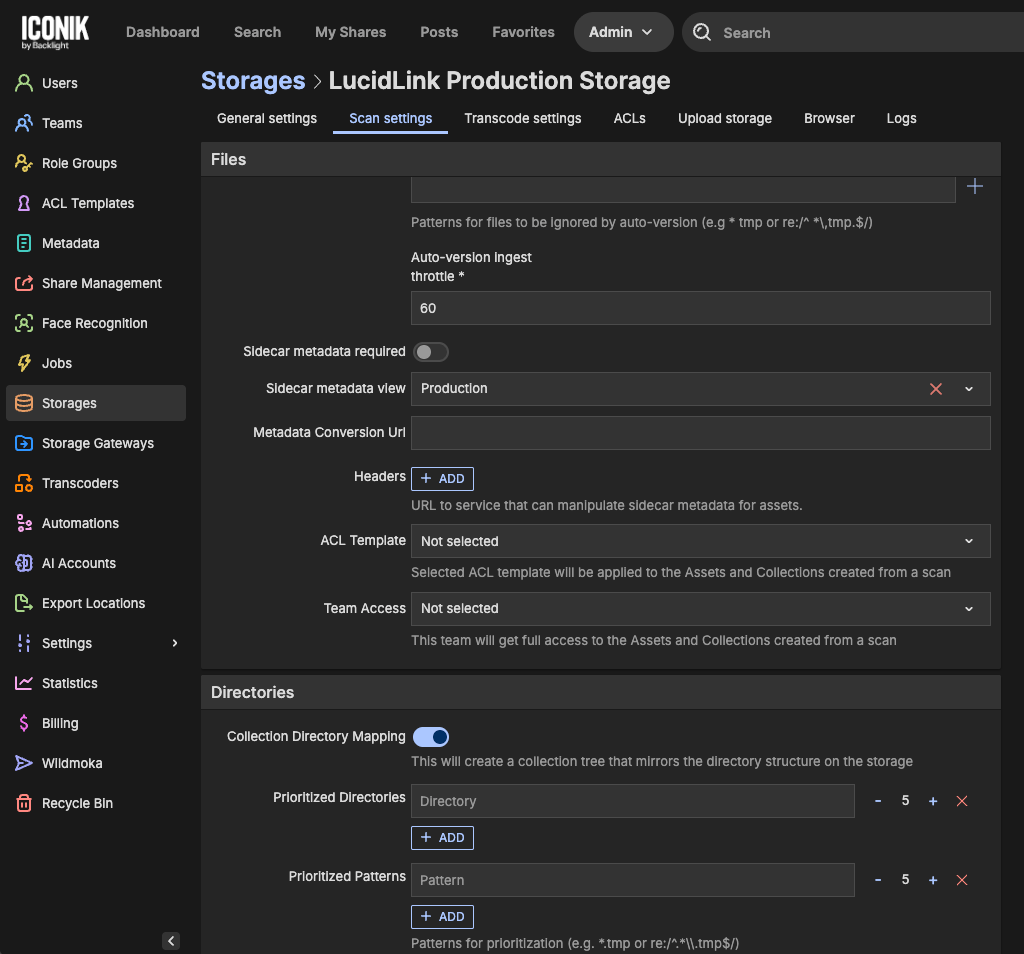
Here's the step you can't skip. The metadata in the sidecar has to match the metadata view associated with the storage in its scan settings. Set that up before any files arrive, under Admin > Storages, in the storage's Scan Settings. If it isn't configured, Iconik still attaches the sidecar to the asset and you'll see it in the Files panel, but none of the metadata appears. Field names in the file need to match the fields in the view.
Not sure of the format? Export an existing asset's metadata from Iconik. The export uses the structure Iconik expects, so it doubles as a template for building or converting your files. If your files aren't in that format at all, the scan settings can also call an external URL: Iconik sends it the file's contents and expects Iconik-format JSON back. Once it's in, sidecar metadata behaves like any other metadata: searchable, filterable and editable.
One catch to know about. A sidecar is read once, at the point of initial ingest. If the view wasn't configured when the files were scanned, there's no way to trigger a re-read from the interface. The workaround is to delete the asset record in Iconik and let it re-ingest. Before you do, make sure the storage's delete permissions remove the record only, not the file on the storage. If you're not sure how yours are set, open a support ticket first.
The library has no metadata at all: let Iconik suggest it
Now, we know what you're thinking. What about the library that's never had any metadata: years of footage uploaded with a filename and nothing else? There's nothing to apply and nothing to import.
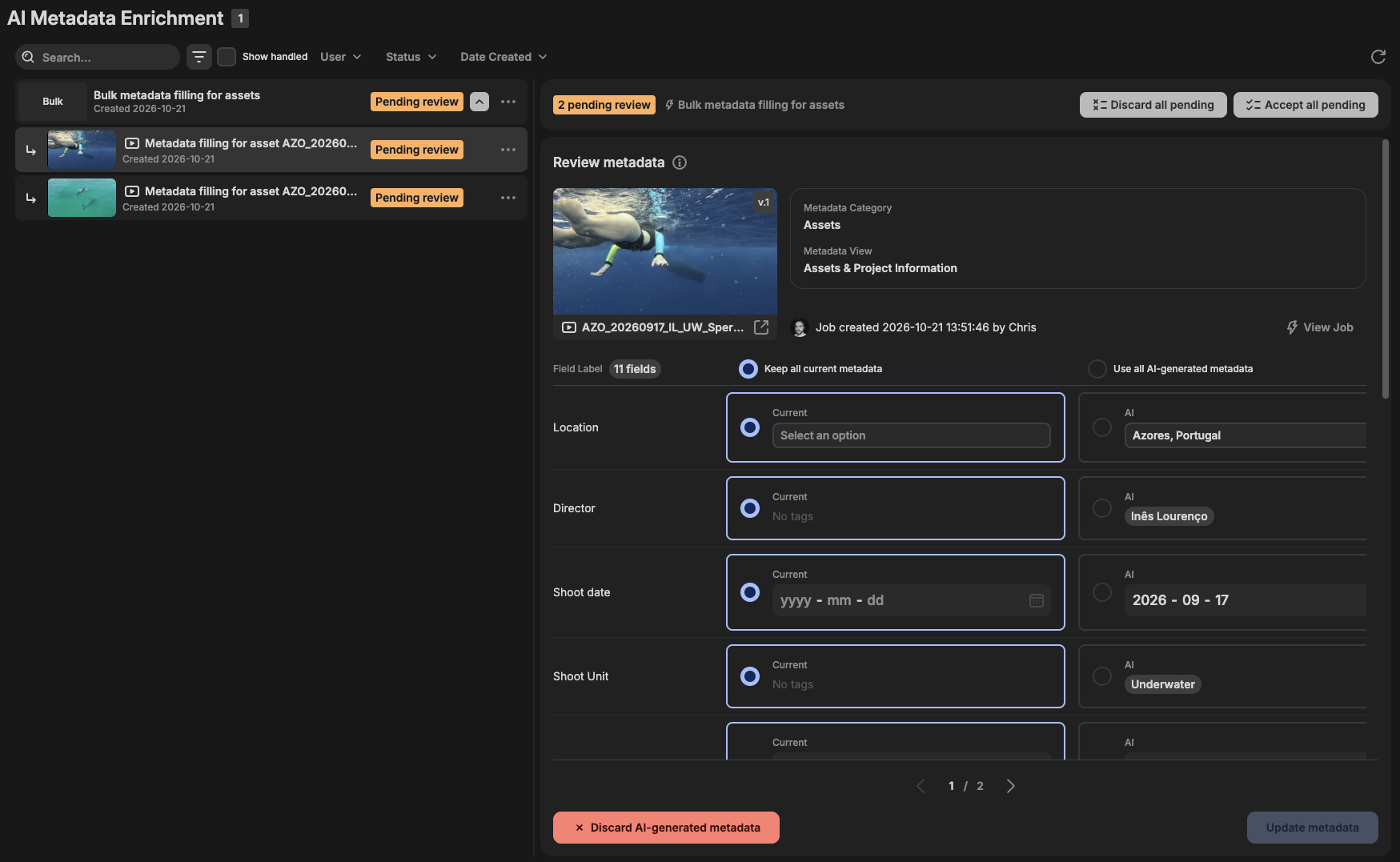
With Iconik, you can select a batch of assets, choose Get AI-generated metadata and pick the fields you want filled. For each asset, Iconik reads what it already has (the filename, the folder path, existing tags, the transcript and any comments) and suggests values. You can steer it with a guided prompt, such as a phrase to look for in the transcript or a visual element to look out for. You review the suggestions and accept them before anything saves, and a field that already has a value is never overwritten. Administrators decide which fields are eligible. It works the same way across many assets in one pass, you can run the same assets through more than once to build up different fields, and it uses AI credits.
What changes in your day
Bulk metadata updates mean that the Friday scramble we described becomes a saved search and one update. Deliveries arrive already filled in. The archive nobody could search becomes searchable without anyone typing a field.
And that matters well beyond tidiness. Search, filtering, reporting and access control all depend on assets being tagged correctly, so every one of them gets better the moment the metadata is there.
Metadata at scale is what makes the rest of Iconik work, and none of these routes needs anyone to retype a thing. Pick the one that matches where your metadata is today: on assets already in the library, in files that are about to arrive, or nowhere yet.
Where to start
- For updates to assets already in the library, build the saved search first, then scope the update to it. It's more flexible than a collection and you can run it again.
- If you'll be receiving sidecar files, set the sidecar metadata view in Admin > Storages > Scan Settings before any files arrive.
- Export an existing asset's metadata from Iconik and use it as the format reference when you build or convert sidecar files.

Chris McMahon is a Senior Product Marketing Manager at Backlight, specialising in positioning, messaging, and go-to-market strategy for complex SaaS products. He has over a decade of experience helping creative and technical teams understand cloud-based media and collaboration technology, with a background that spans product marketing, content strategy, and editorial leadership. Chris has launched multiple products, built global sales enablement programs, and shaped value narratives for partners including AWS, Google Cloud, and Adobe. He is based on the south coast of the UK.