.svg)


Table of contents

Imagine it's the week before a launch and the requests are already stacking up. Marketing wants to see the project you've been living in. Legal needs to watch the final cut before it goes anywhere. A freelancer starts Monday and needs to find the footage without being able to see everything.
You've handled this before. A Dropbox link here, a second copy of the folder there, a message asking marketing which version they actually opened. It works until someone opens the wrong one, and you're the person who has to deal with the fallout.
But there's a way to make each of those requests a setting instead of a favor, and it comes down to two decisions you make once: which rooms each team can walk into, and what they're allowed to do once they're inside. In Iconik those are Teams and Role Groups. Set them up before anyone logs in and the launch-week scramble gets a lot shorter.
What Teams and Role Groups are
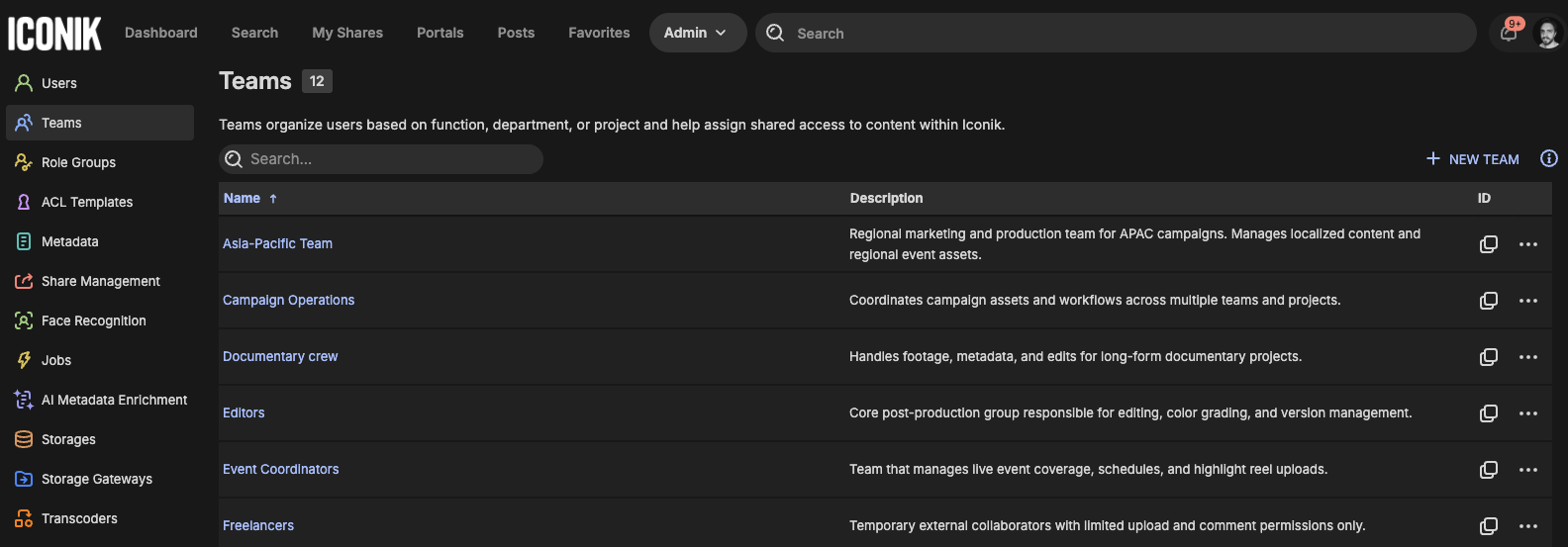
Teams decide who can see what. A Team is a group of users that you create around how your organization actually works: by department, project, client or geography. You control access by putting Teams on an item's access control list (ACL), which is the list of who can see and use it. Add a Team to the ACL of an asset, collection or saved search and its members can see it; no one else can. Teams also control who can reach metadata views and other areas of Iconik. Every user belongs to at least one Team, and there's no limit on how many Teams a user can be in.
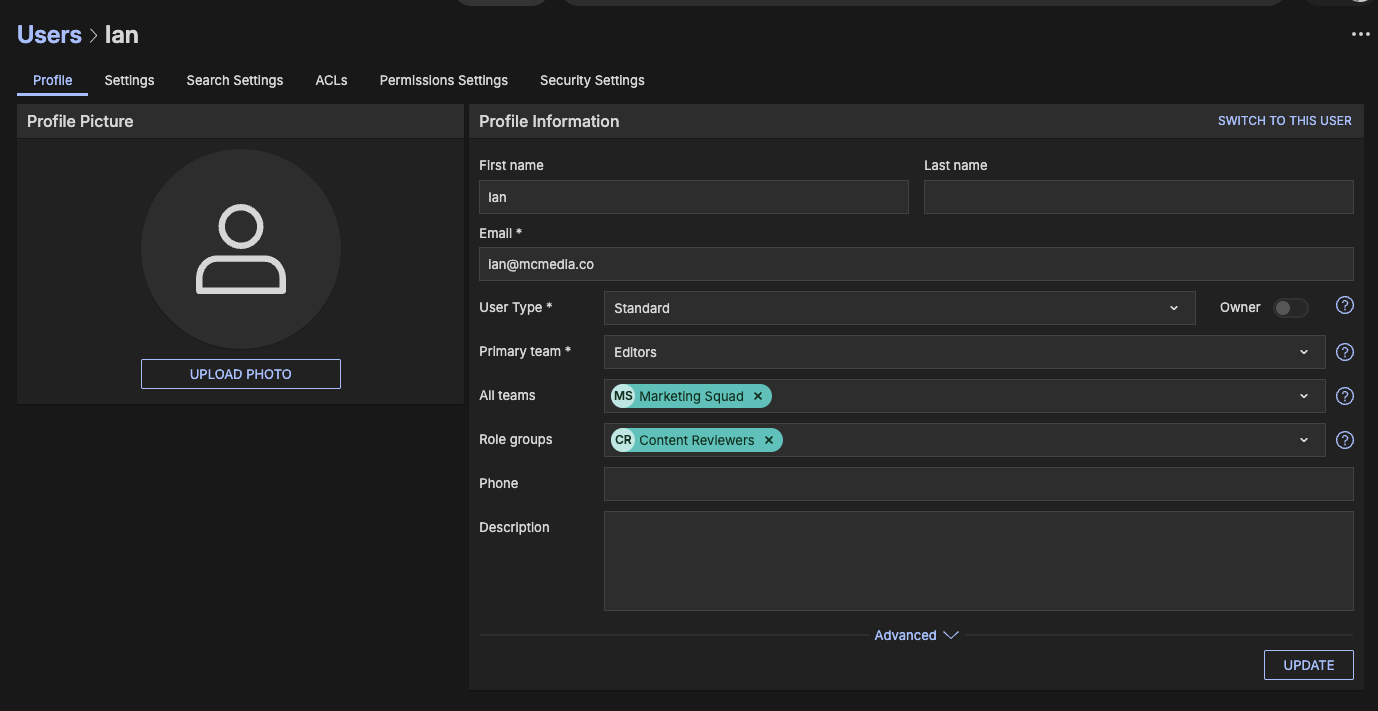
Each user has one Primary Team. When they upload an asset, or a storage they've set up starts bringing assets into Iconik, their Primary Team is automatically added to that asset's ACL. So anything a user adds is immediately visible to the rest of their Primary Team, with nothing to configure. Think of it as their home base. Any other Teams a user belongs to are Additional Teams. They let the user see what's been shared with those Teams, without changing where their own uploads land.
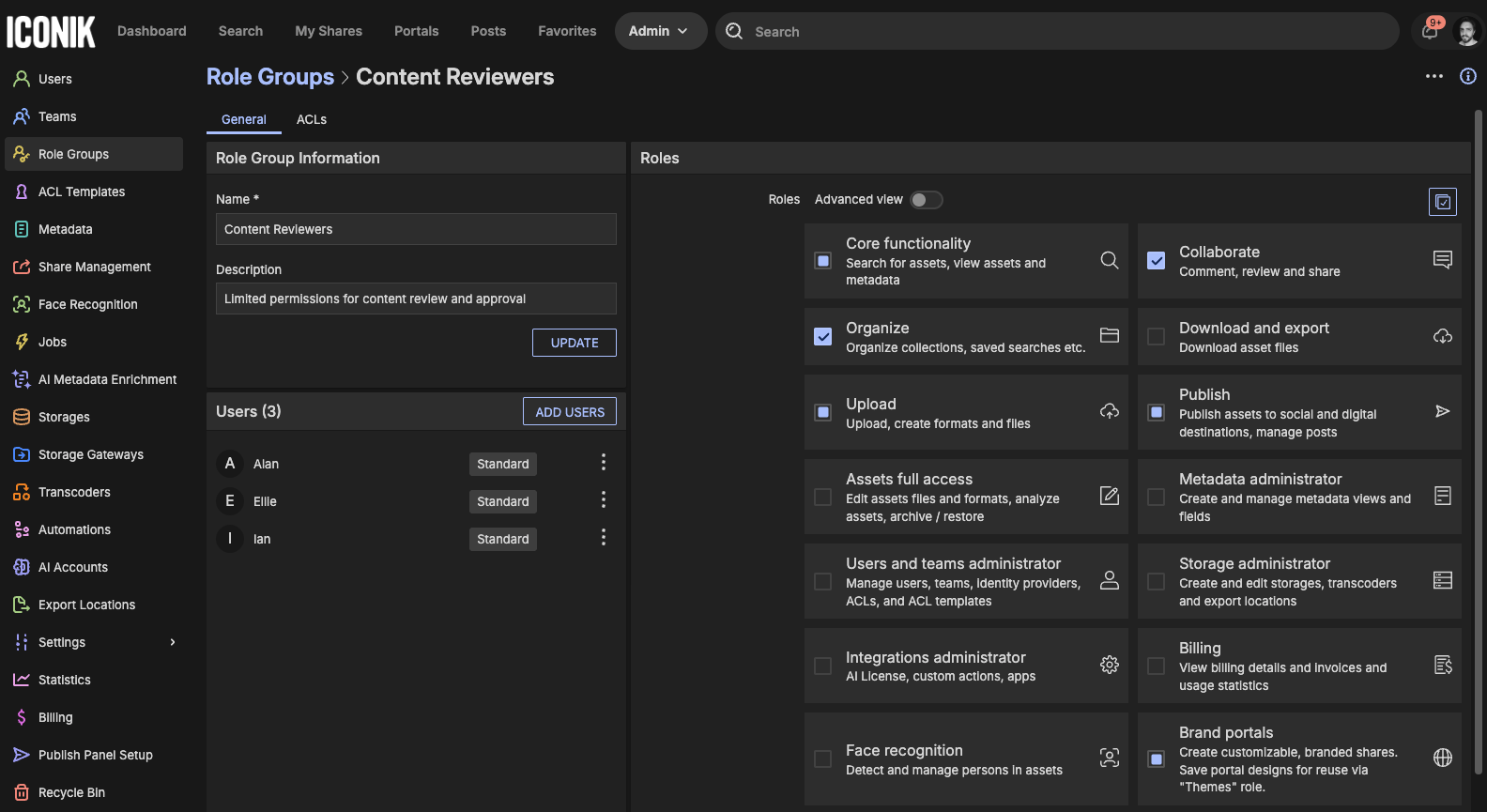
Role Groups decide what people can do. Every user in Iconik is a Power, Standard or Browse-Only user, and each type comes with a default set of capabilities. A Role Group lets you narrow those capabilities for a particular group of users without changing their user type. Two rules matter. Role Groups can only restrict, never expand: the user type sets the ceiling, so a Browse-Only user in a Role Group that includes edit access doesn't gain it, and you'd need to upgrade their user type first. And capabilities are cumulative: a user in several Role Groups gets the combined roles from all of them. Role Groups are optional. If you don't set any up, users keep the full default for their user type.
Put together, Teams answer which content someone can see, and Role Groups answer what they can do with it. Most people only ever need Teams.
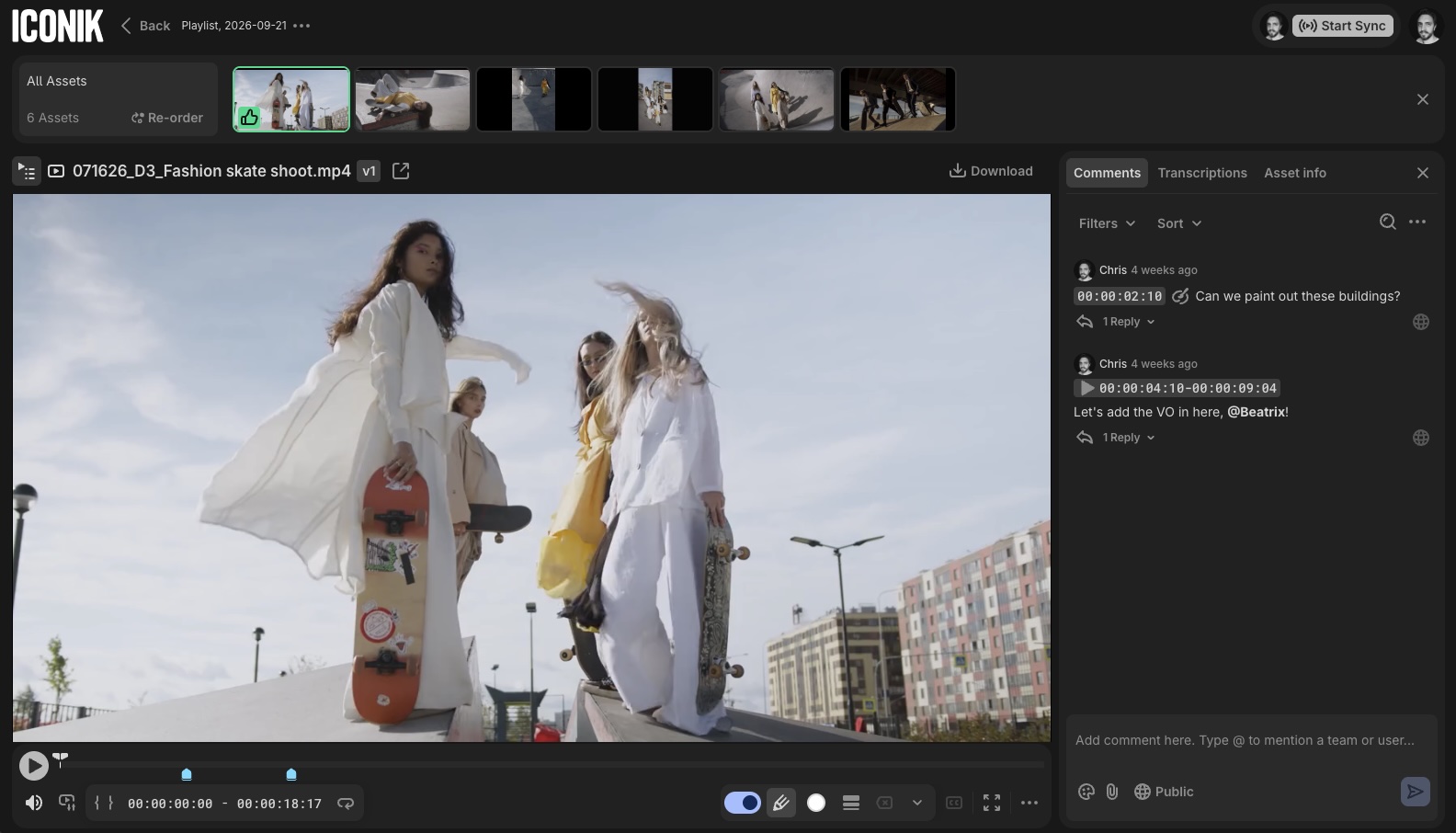
You can get a live look at Teams and Role Groups in this video:
Editorial uploads, and the work lands in the right place
Let's consider the scenario we set out at the start. Let's start by thinking about managing a team that already lives in Iconik. For example, you may have editors who upload cuts and bring in footage all day. They should only be able to see, access and use the content they specifically need, and you may not want them seeing everything else. Here's how to set that up.
Create a team called Editors and make it your editors' Primary Team. From then on, whenever an editor uploads an asset, or a storage they've connected starts bringing assets in, Editorial is applied to that asset's ACL automatically. Everyone on the Editors team sees it the moment it lands, and people outside Editors don't, unless you add their team to the ACL. There's nothing for you to configure per asset.
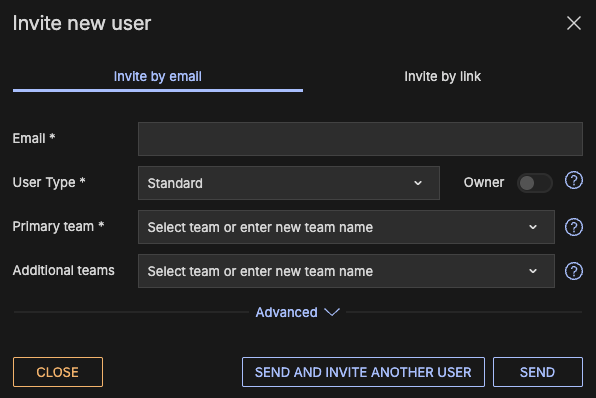
You set the Primary Team when you invite someone, and you can change it later from their profile or from the Teams page.
To create the team:
- Go to Admin > Teams and select Create new Team.
- Name it, add a description if you like, and add users.
- Select Save.
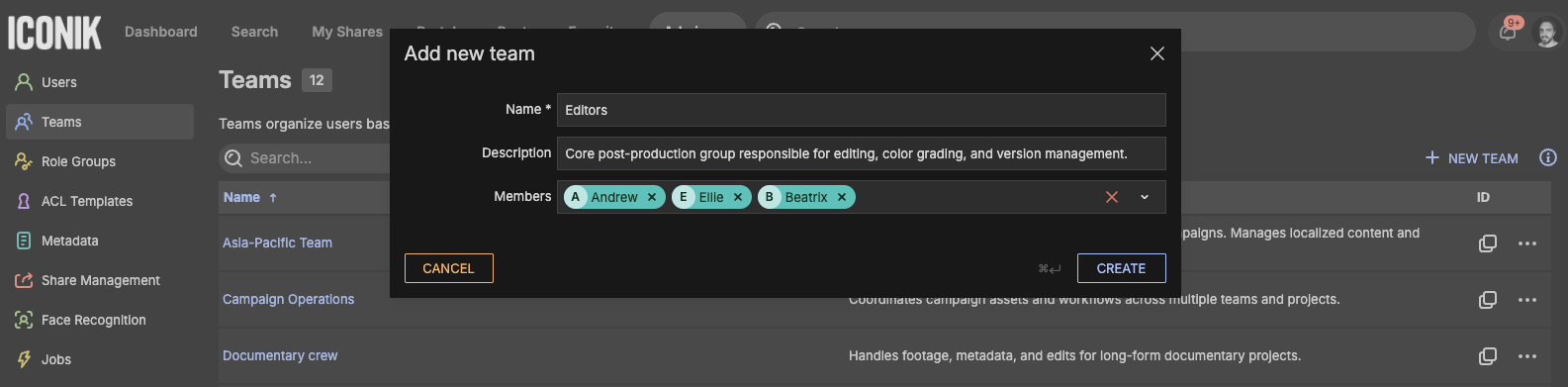
You can also create a team on the fly while inviting someone (Admin > Users > + New User) by typing a new team name into the Primary or Additional Teams field. The team is only created when you send the invitation.
Marketing wants in, without a second copy of anything
Now, let's say that marketing often needs to see work that editorial is producing, but you don't want to hand over everything, or make a copy for them. You should create a Marketing team and add the marketing users. They're in the same Iconik domain, searching the same library, and they see only the slice of it you've decided they should. What marketing uploads lands with Marketing, the same way editorial's work lands with Editorial. Teams can also carry their own defaults, such as the panels members see, where their uploads go and which metadata fields are required, so marketing's setup doesn't have to match editorial's.
Assets don't cross team lines on their own. What editorial uploads stays with editorial until you say otherwise. When there's something marketing should see, add the Marketing team to that asset's or collection's ACL, by hand or with an ACL Template if you find yourself doing it often.
Then there's the person in the middle: a producer who works with editorial every day but also needs to review what marketing is producing. Make Editorial their Primary Team, so their own uploads land with editorial as usual, and add Marketing as an Additional Team. They can then see everything shared with Marketing, without changing where their own work lands.
Legal only needs to see the final cut
Now, let's say legal needs to watch the final cut and tell you it's clear to go. They don't need the rough cuts, the outtakes or the rest of the library, so the goal is a team that can see the final cut and nothing else.
Invite the legal users as Browse-Only. Browse-Only users can log in, browse assets and collections, comment on assets and view their metadata, which covers a reviewer's whole job.
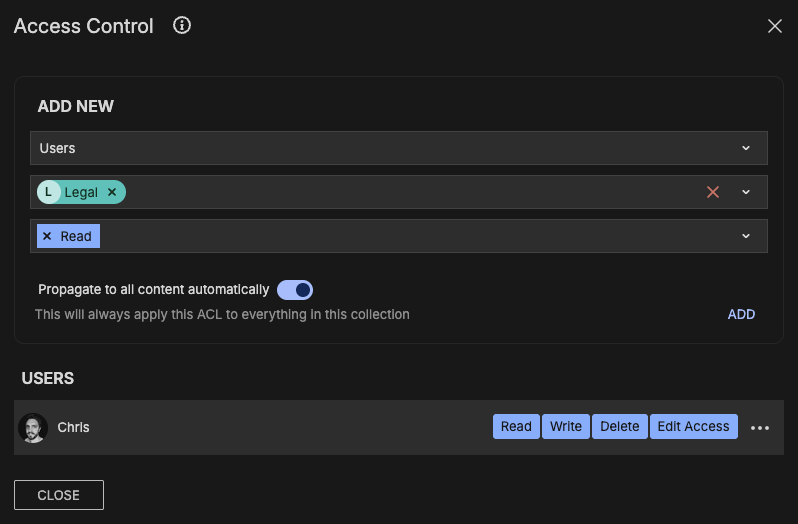
You can create a Legal team and put the final cut in its own collection. Add the Legal team to that collection's ACL and turn on propagation, so the access applies to everything inside it, including final cuts you add later. Legal sees that collection and nothing else; a user without access to an asset can't find it in search.
When the next cut is ready, add it to the same collection and Legal can see it and nothing else, with nothing to reconfigure.
What to do when you need someone to do less than their user type allows
Say you have ten Browse-Only users who log in, browse, comment and look at metadata, which suits them fine. Then a new group arrives, a partner's team or a vendor, who should be able to watch the content and nothing else: no commenting, no metadata. Browse-Only allows more than you want to give them.
You don't need a new user type; you need a Role Group.
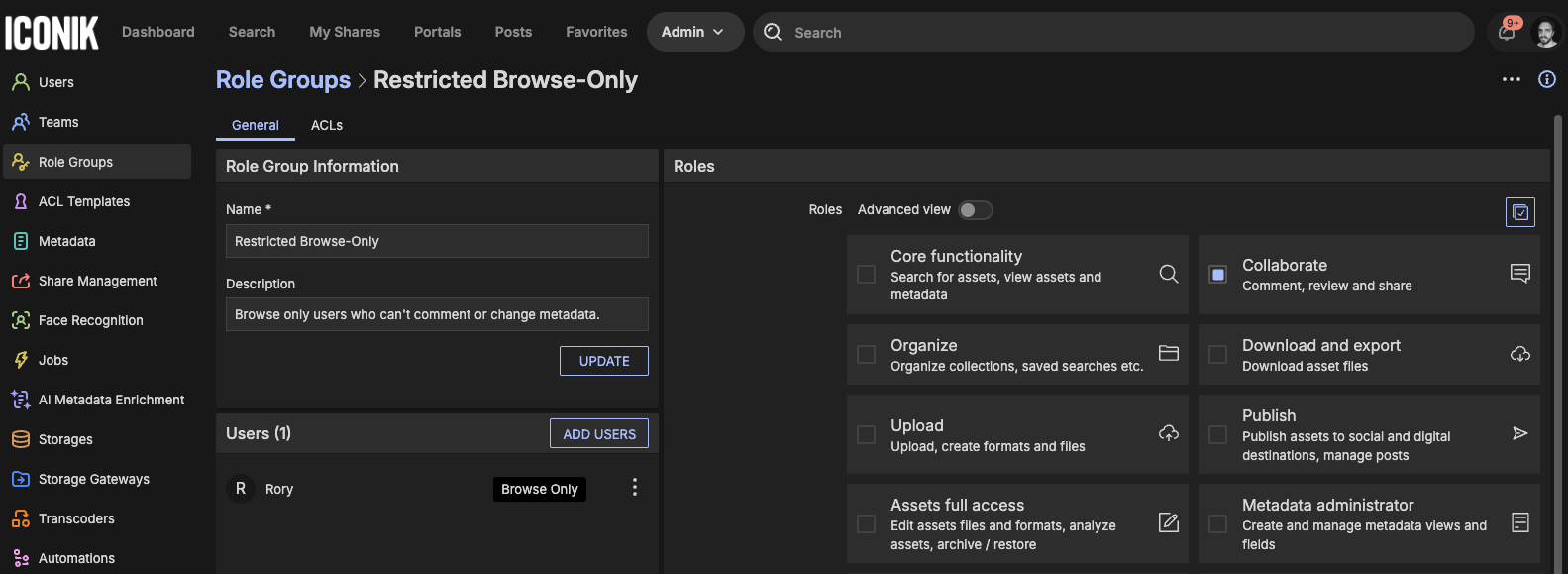
- Go to Admin > Role Groups and select Create new Role Group.
- Name it Restricted Browse-Only.
- Select only the roles this group needs, such as view access to assets and collections. Leave commenting and metadata viewing off.
- Add the new users to Iconik as Browse-Only.
- Add those users to the Restricted Browse-Only Role Group.
The new cohort gets the Browse-Only baseline, trimmed to what the group allows. Your existing ten are untouched. One detail catches people out: a Role Group with no roles selected changes nothing, so select the roles before you expect the group to take effect.
What changes in your day
The requests don't stop; managing them just gets shorter. Marketing wants in: you add a team. Legal wants a look: one collection and one team. The freelancer starts Monday: you invite them with the right team and the right user type, and they can only see what they should. No second copies, no links to chase, no “which version did you watch?”
You decide who sees what once, at the team level, instead of asset by asset. And you stop being the person at the end of the corridor that everyone has to ask.
Access control sounds like an admin task until the week it decides whether launch goes smoothly. Set up the structure before the first invite goes out and the rest of the year is mostly adding names to teams.
Where to start
- Sketch your teams before you invite anyone, even a simple version like Editorial, Marketing and Legal. Primary Teams apply at upload, so a structure in place before content arrives beats retrofitting it afterwards.
- Add Role Groups only when a specific group needs less than their user type allows. Most domains don't need one on day one.
- Create teams while you invite people if that's faster, and remember the team only exists once the invite is sent. If you later need to remove or delete a team, move anyone who has it as their Primary Team first; Iconik won't let you remove them otherwise.
Full setup steps are in the Teams and Role Groups Help Center articles, and the explainer video shows both working together.

Ian is a Senior Technical Account Manager at Backlight. Before joining the team, he spent years deploying and managing MAM systems across professional sports, esports, and higher education, so he knows firsthand what it takes to stand one up. Today he helps Iconik customers build taxonomies, metadata, and collection structures that keep assets organized and secure. Whether building a MAM or deploying one, his philosophy is simple: if you want people to use your platform, you have to make it genuinely useful to them.