.svg)


Table of contents

It's 4pm and the client needs to sign off on the cut by five. The editor has just exported v7. You could attach it to an email, drop it in a shared folder, or paste a download link into Slack, and then wait to find out which version they actually watched, whether they've seen the notes from legal, and who forwarded it to whom.
The cut, the notes and the approval end up in three different places, and you're the one reconciling them.
We've all been there. But there's a solution.
Sharing in Iconik puts all of it in one place. Every share is a configured link to a specific asset, playlist or collection: it expires when you say it does, it allows exactly what you choose, and you can see who opened it. Reviewers inside and outside your organization use the same system, and external reviewers don't need an Iconik account.
Getting sign off on an edit
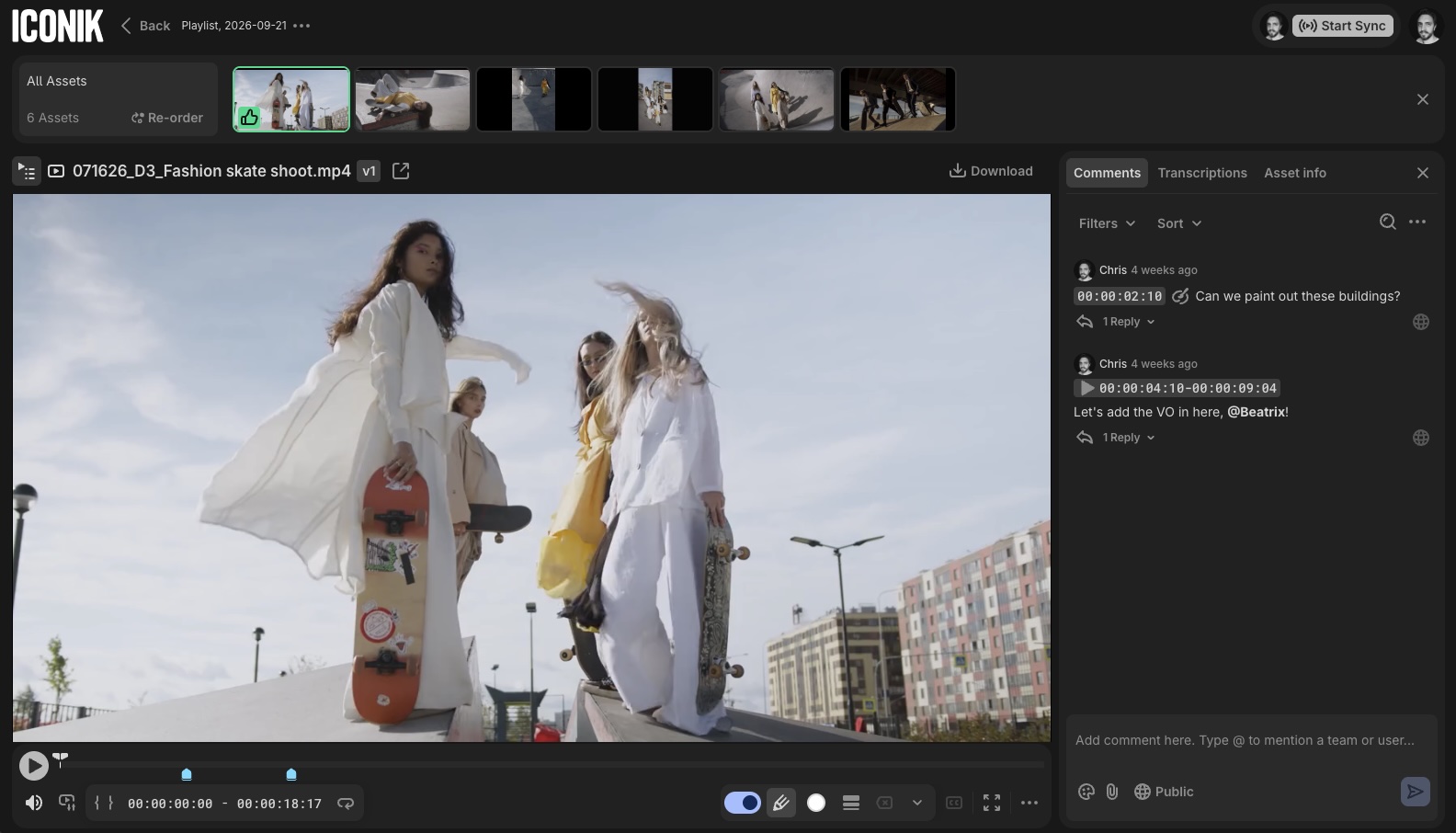
Let's consider that 4pm edit. To address that, you could share the single asset. Recipients open it straight in the player, with no browsing and no hunting. They can play it, leave comments pinned to a timecode, draw on the frame with the annotation tools, and approve or reject it if you've turned approvals on. “Move the logo left” becomes an arrow on the frame, and the approval lives on the asset instead of in an email thread.
To send it:
- Select Share on the asset. You'll find it on the search results page, on an asset or collection page and in My Shares, usually in the gear or right-click menu.
- Add recipients: pick Iconik users by name or enter email addresses.
- Set the expiry, and choose whether they can download the original, a proxy or neither.
- Add a password or switch on a watermark if the content needs it. The advanced options cover comments, approvals, transcriptions and metadata views.
- Select Send.
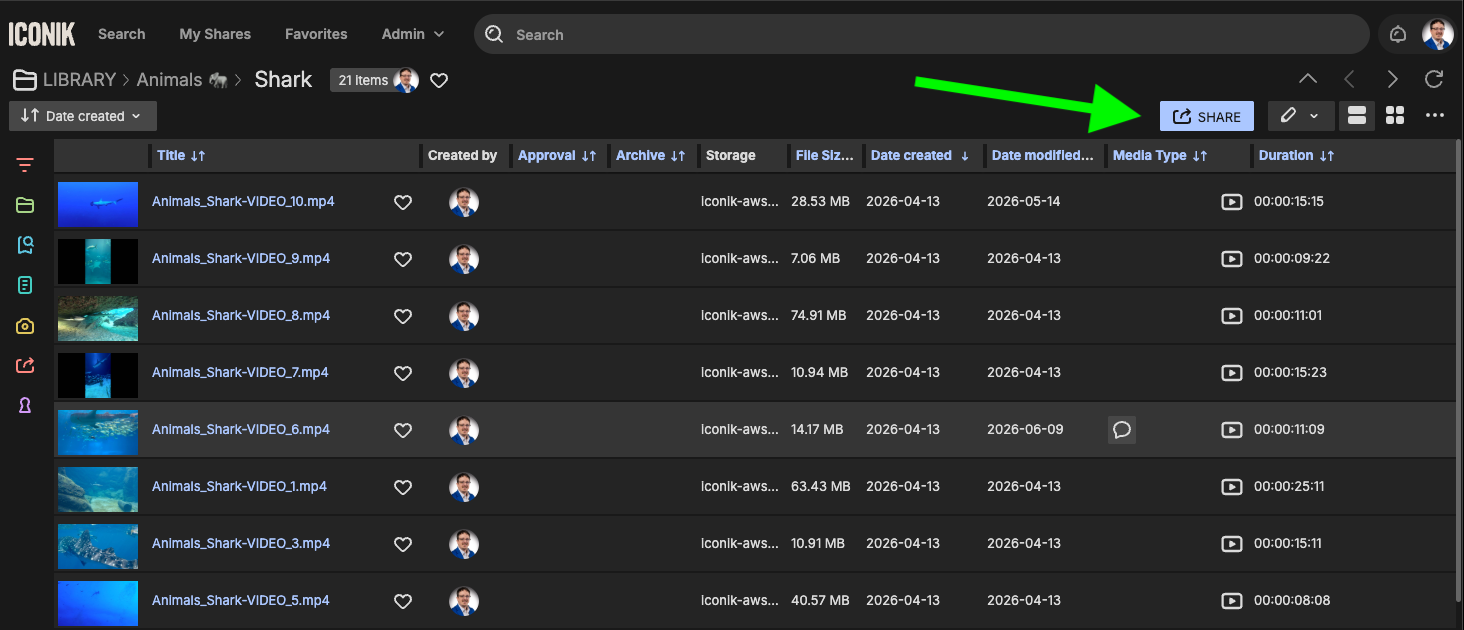
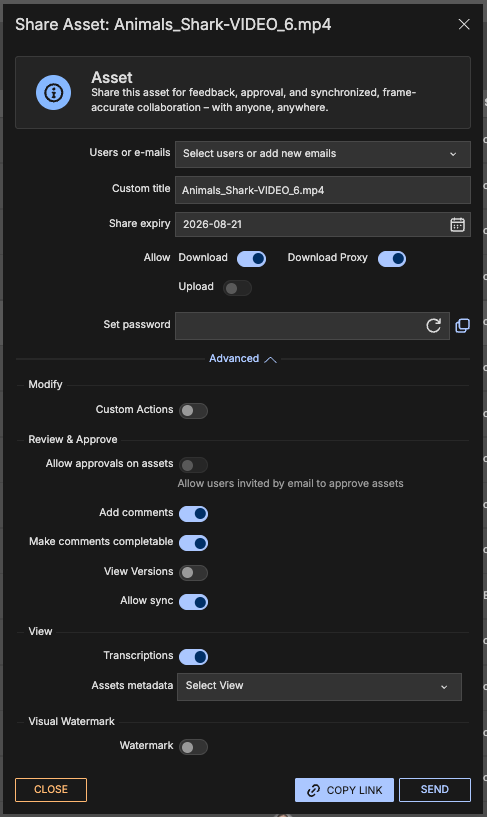
Each recipient gets their own unique link by email, and that's the point: you can see how many times each person has opened theirs. Add every reviewer to the share rather than forwarding a link, because a forwarded link can't be traced to the person who used it. If you need a link to paste somewhere, you can generate a shareable one, but the built-in send is the version you can track.
Two options earn their place on sensitive edits. A visual watermark sits over the proxy while people review, it's a per-share toggle, and it never touches the original. And internal-only comments let your own team talk about the edit candidly, on the same asset, while the client sees only what's meant for them. A comment can be flipped between internal and public after you've posted it.
Walking a client through the spots, in order
When order matters, such as a rough edit, a run of campaign spots or a deliverables package, share a playlist. You curate the sequence and recipients move through it in that order. For each playlist share you choose the version scope: the latest version only, all versions, or specific versions per asset, so reviewers compare the edits you want and not every iteration.
An asset or playlist share also lets you review in a live synchronized session. Everyone in the session sees the same frame at the same moment. When the session leader scrubs, zooms or pans, everyone follows, and comments and annotations appear for the whole group as they're made. A colleague on an iPhone sees the same frame as someone reviewing original assets via the Iconik Desktop Player, and all comments are saved to the asset.
Keeping an agency in the loop on a living body of work
Some reviews have no running order. The agency needs to see everything for the campaign, and it keeps changing. Share a collection and recipients get a gallery, with the assets side by side and a list view they can filter and sort. A collection share stays live, so assets you add later show up for them without a second email.
Getting footage in from someone without an account
Sharing runs in both directions. Turn on Upload for a collection share and it becomes an upload request: the contractor drags files into the collection from their browser, with no Iconik account and no zip file in your inbox. The footage lands in a collection you control, ready to be found and used.
Once it's final, show it off in a Brand Portal
Review is for work in progress. When the edit is signed off and the work is finished, a Brand Portal is how you present it: a branded, white-labeled gallery of finished media, live-linked to Iconik so whoever opens it sees the current version. The execs and stakeholders who keep asking “where's the final?” can browse, search and download without an Iconik account, and you stop assembling folders and links every time something wraps. Brand Portals are available on Pro and Enterprise plans.

Knowing what's out there
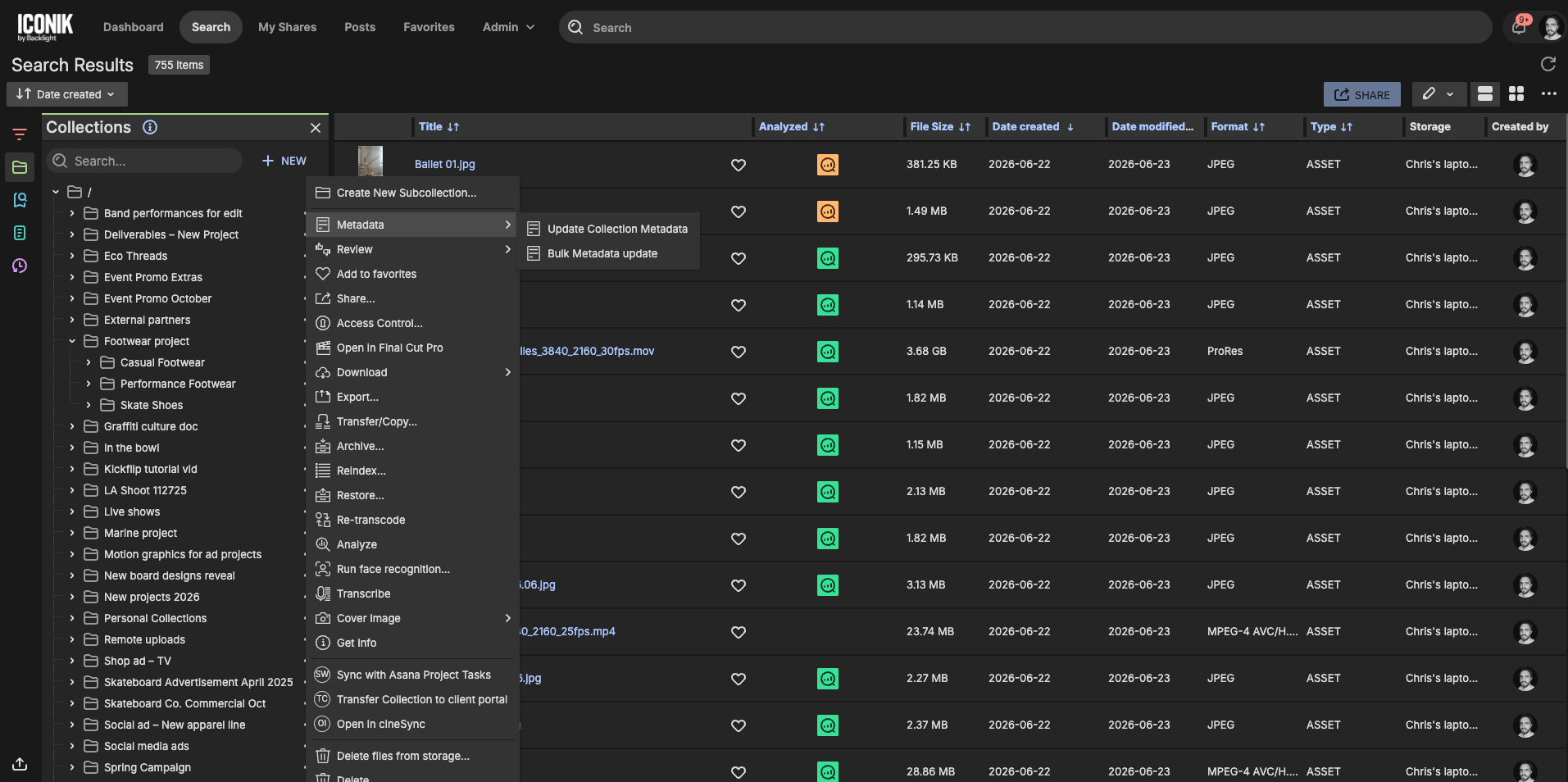
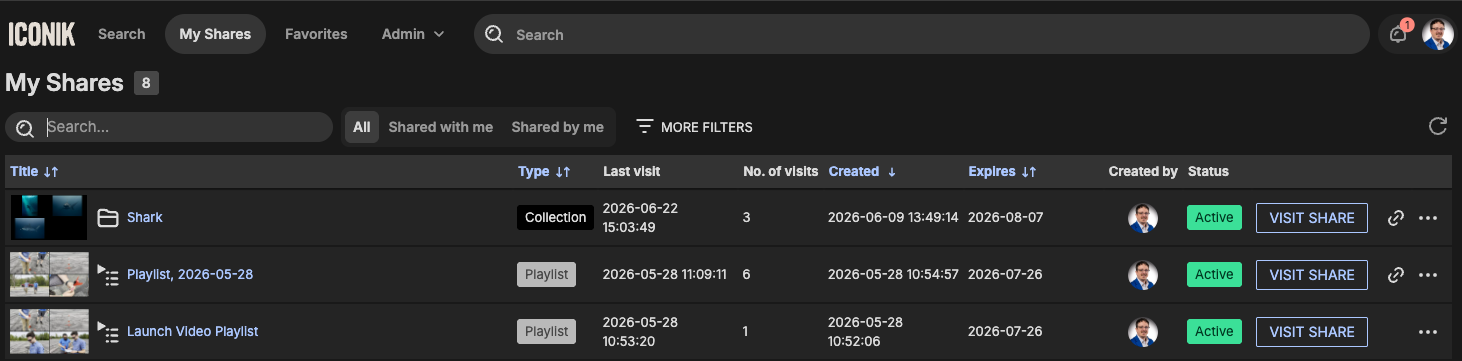
Every share you send and receive is listed in My Shares. Filter by creator, date or request type, check how far each review has gotten, edit a share's settings, add or remove participants, and delete shares you no longer need.
Every share expires. Your Domain Owner sets the maximum, up to five years, and a shorter expiry is the better habit for anything time-sensitive or external. Domain Owners can also see every share in the domain from the admin share management page, and they set what's available and what's switched on by default under System Share Settings. Changes there apply to shares created afterwards, not to ones already out. If an option is missing when you create a share, it's usually restricted at the domain level, or for your team, and your administrator can tell you why.
What changes in your day
The 4pm sign-off stops being a scramble. There's one link per reviewer, one version on screen, notes pinned to frames and the approval recorded on the asset. The contractor's footage arrives via upload to the collection you expect it in. The execs find finished work in one place. And you stop being the switchboard between the edit, the client and the notes.
Sending something out used to mean losing track of it. With a share, you keep control of who sees it, what they can do and when it stops.
Where to start
- Pick the share type before you open the dialog: a single asset for one file, a playlist when order matters, a collection for work that keeps changing.
- Set an expiry on every share, and add each reviewer to the share instead of forwarding a link.
- Ask your administrator what your domain's share defaults and limits are before your first external share. Some options may be restricted, and it's better to know before you configure.
The full set of options is in the Sharing Overview in the Help Center.

Ian is a Senior Technical Account Manager at Backlight. Before joining the team, he spent years deploying and managing MAM systems across professional sports, esports, and higher education, so he knows firsthand what it takes to stand one up. Today he helps Iconik customers build taxonomies, metadata, and collection structures that keep assets organized and secure. Whether building a MAM or deploying one, his philosophy is simple: if you want people to use your platform, you have to make it genuinely useful to them.