.svg)


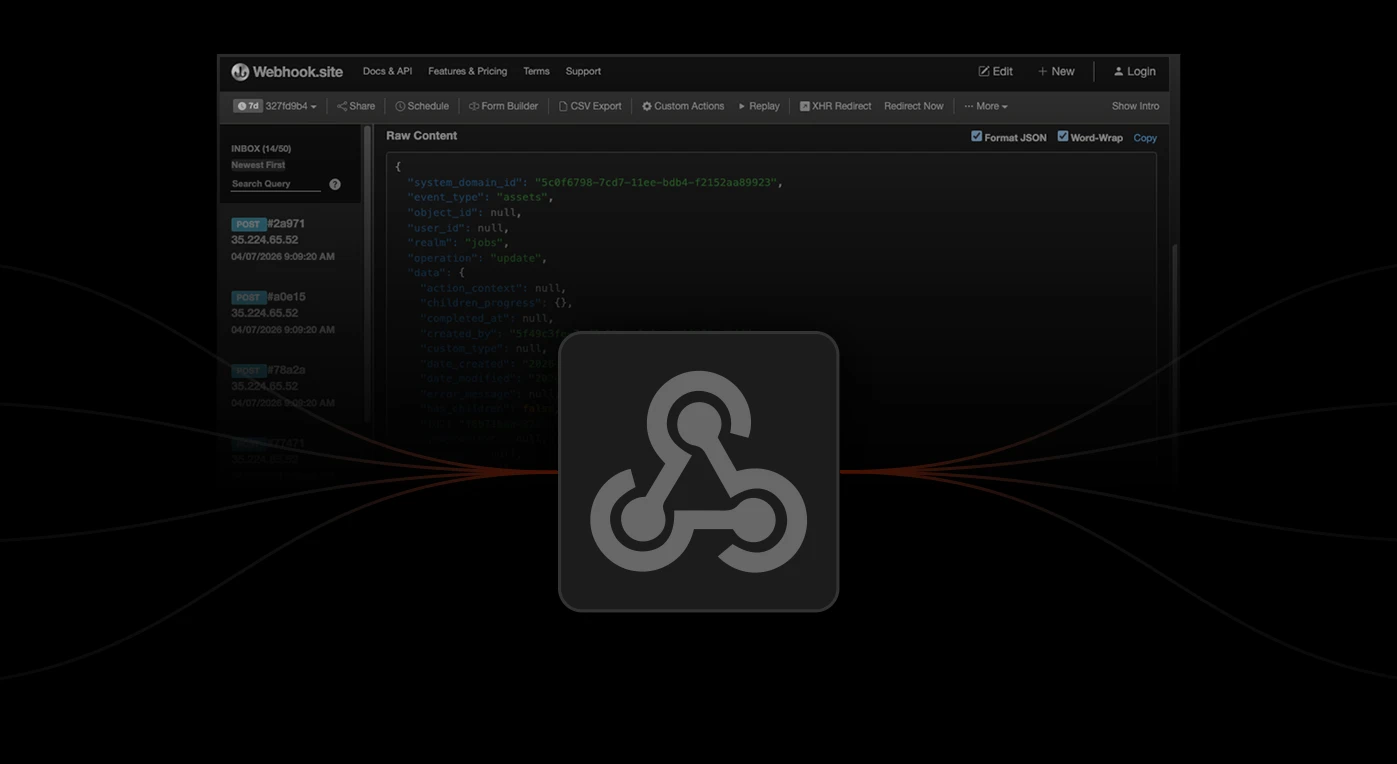
Table of contents

Picture this: you set up an Iconik webhook to trigger when an asset is analyzed. You click Analyze. And then your external system — an AWS Lambda function, a Zapier workflow, whatever it is — lights up a dozen times in the space of a few seconds. Job updates, segment creations, background processes you never asked for.

One action, sixteen payloads.
This isn't a bug. It's what happens when a webhook is pointed at a broad event type without filtering. Iconik fires events for every background action associated with an operation, and if your webhook is listening for all of them, it will catch them all.
At low volumes, it's noise. Connected to a paid external system, it's unnecessary compute charges and unpredictable behavior.
The good news is that Iconik's webhook configuration gives you precise control — realm, operation, and a query field that lets you filter on the exact JSON structure of the payload.
Here, we explore the process for narrowing multiple events down to one.
The problem: Broad event types catch everything
Webhooks in Iconik are event-based triggers that call an external server or application whenever a defined action occurs. They're the primary mechanism for building automations that go beyond Iconik's built-in engine — connecting to external platforms like AWS Lambda, Zapier, or custom scripts in near real-time. This capability is essential for building complex automations that are not necessarily available within Iconik's built-in Automation Engine.
However, if webhooks are not configured correctly, those external systems might end up drowning in unnecessary data.
The catch is in the configuration.
Consider a scenario where an external automation needs to be triggered only when an asset is initially analyzed. If a new webhook is created in the Iconik settings with the event type simply set to "Assets," you're telling Iconik to send a payload for every asset-related event — not just the one you care about. So, trigger an analyze job, and Iconik will fire events for the job creation, any segment updates, status changes, and more.
The payload you actually want is in there; it's just buried under everything else.
Without filtering, every one of those events hits your external system. And if that were a paid external system, such as an AWS Lambda function, it could be triggered a hundred times in less than 10 minutes, racking up unnecessary compute charges and leading to unintended behavior.
Clearly, the noise must be filtered.
The fix: Filter by realm, operation, and payload query
The solution is to work backward from the payload you want, identify what makes it unique, and configure your webhook to match only that. The process has five steps.
Let’s explore them using the Analyze example. (Although the approach we’re taking here can be used for any webhook configuration in Iconik.)
It takes an extra 15 minutes up front, but it saves a lot of debugging — and potentially a surprising invoice — later.
1. Always start with webhook.site to test
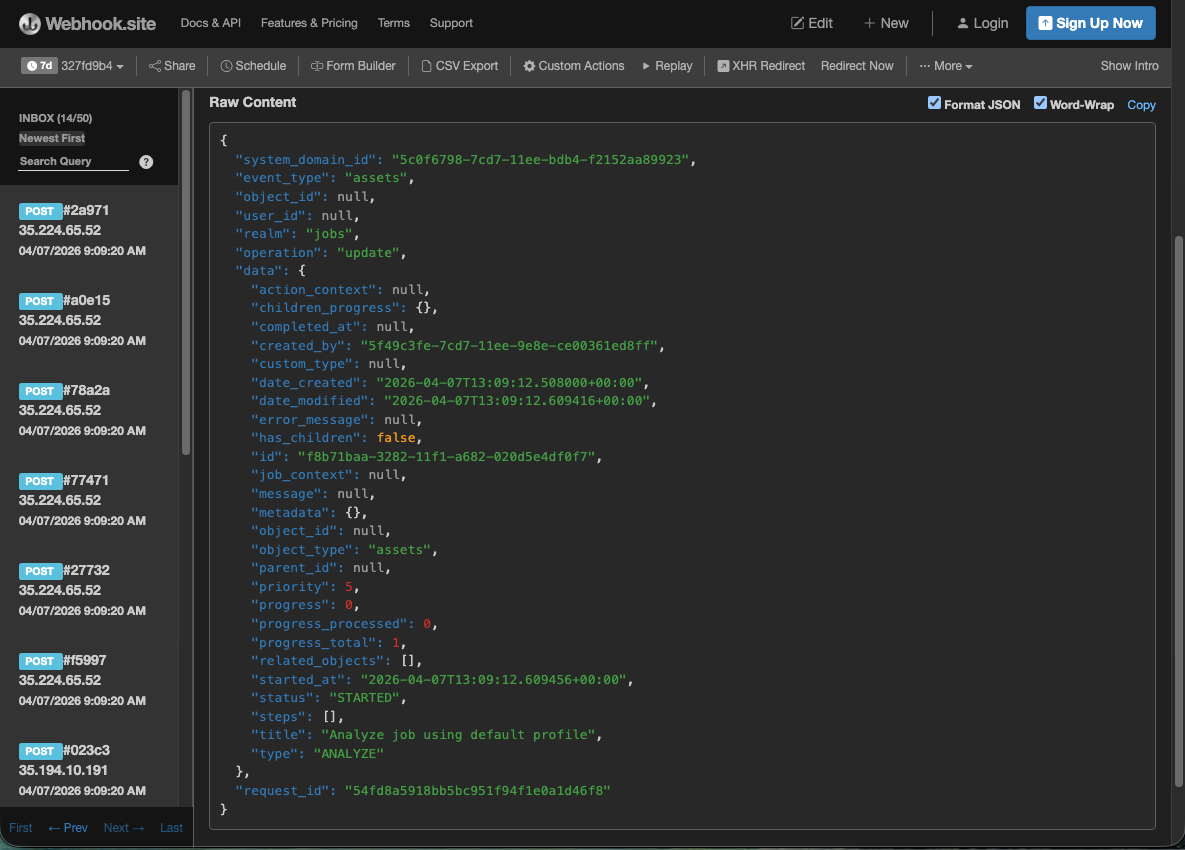
Before pointing a webhook at any live production system, route it to a destination like webhook.site first. This free tool captures and displays every raw payload Iconik sends, so you can inspect exactly what's being fired without triggering anything real.
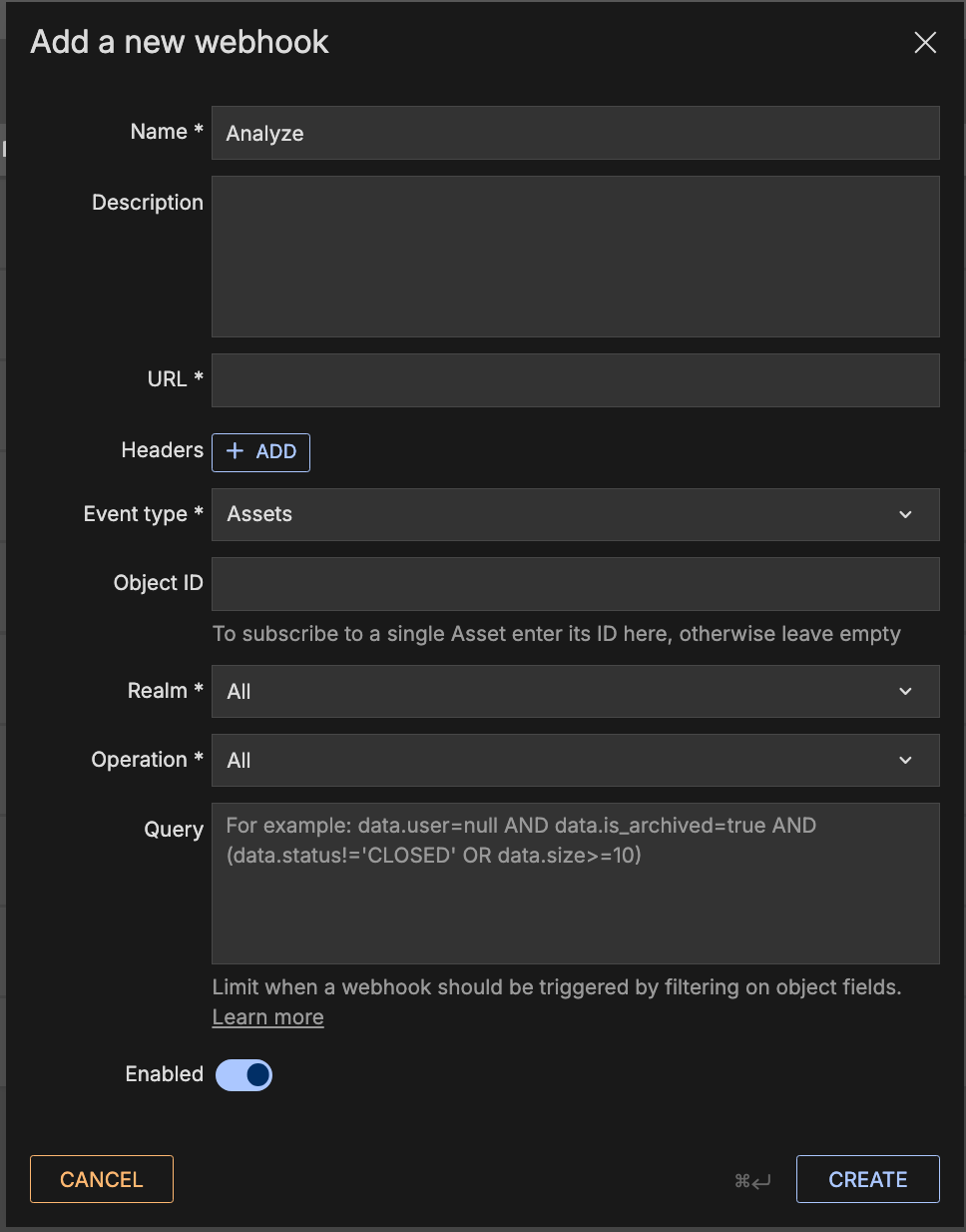
You can connect it to a webhook configured to capture all asset events like this:
2. Trigger the event and inspect the payloads
With webhook.site configured, run the action in Iconik you want to filter on. For this example, that's clicking the Analyze button on an asset.
Watch what arrives in webhook.site. You'll see multiple payloads come in within seconds. Read through them and look for the event unique to this specific action that can be targeted by the webhook filters.
In this example, all Analyze actions create a job, and jobs are only “created” once. Therefore, we can use a “job create” payload as the unique event on which to build a filter.
3. Define the realm and operation
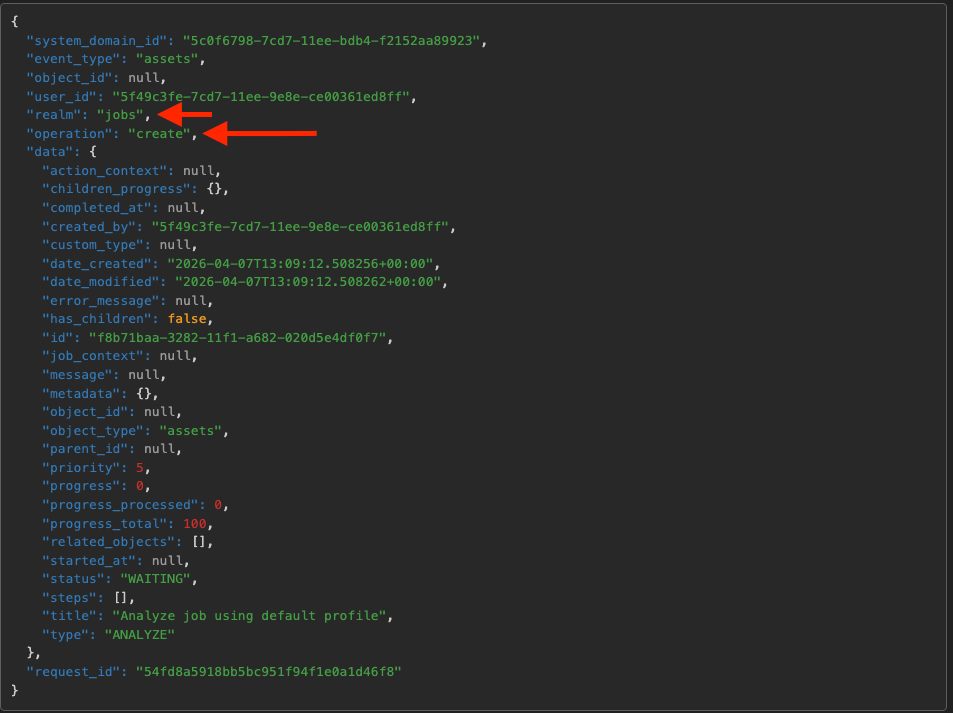
Open the log for the job creation event on webhook.site. Two fields are immediately useful: realm and operation. We can see that the realm is jobs and the operation is create.
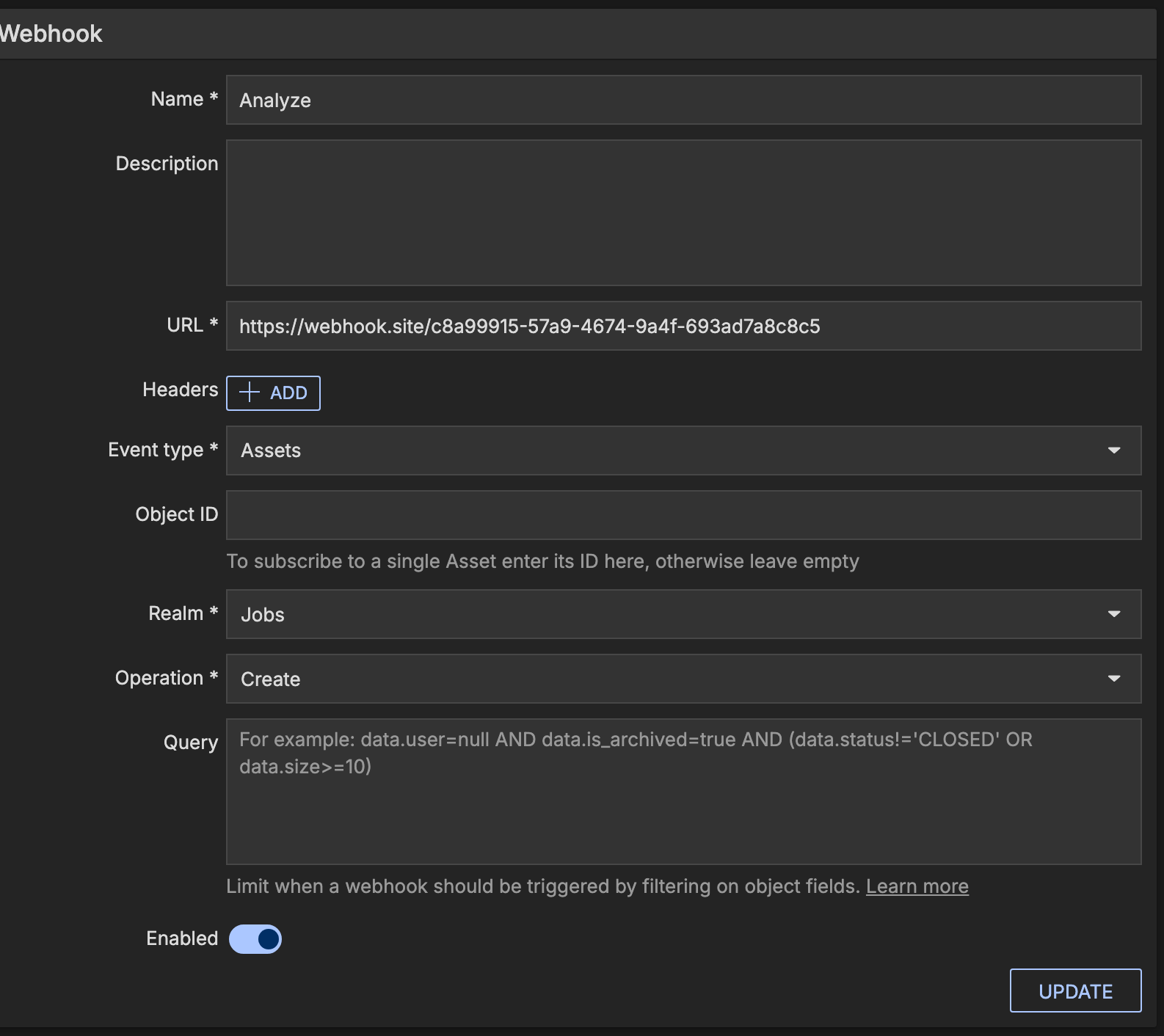
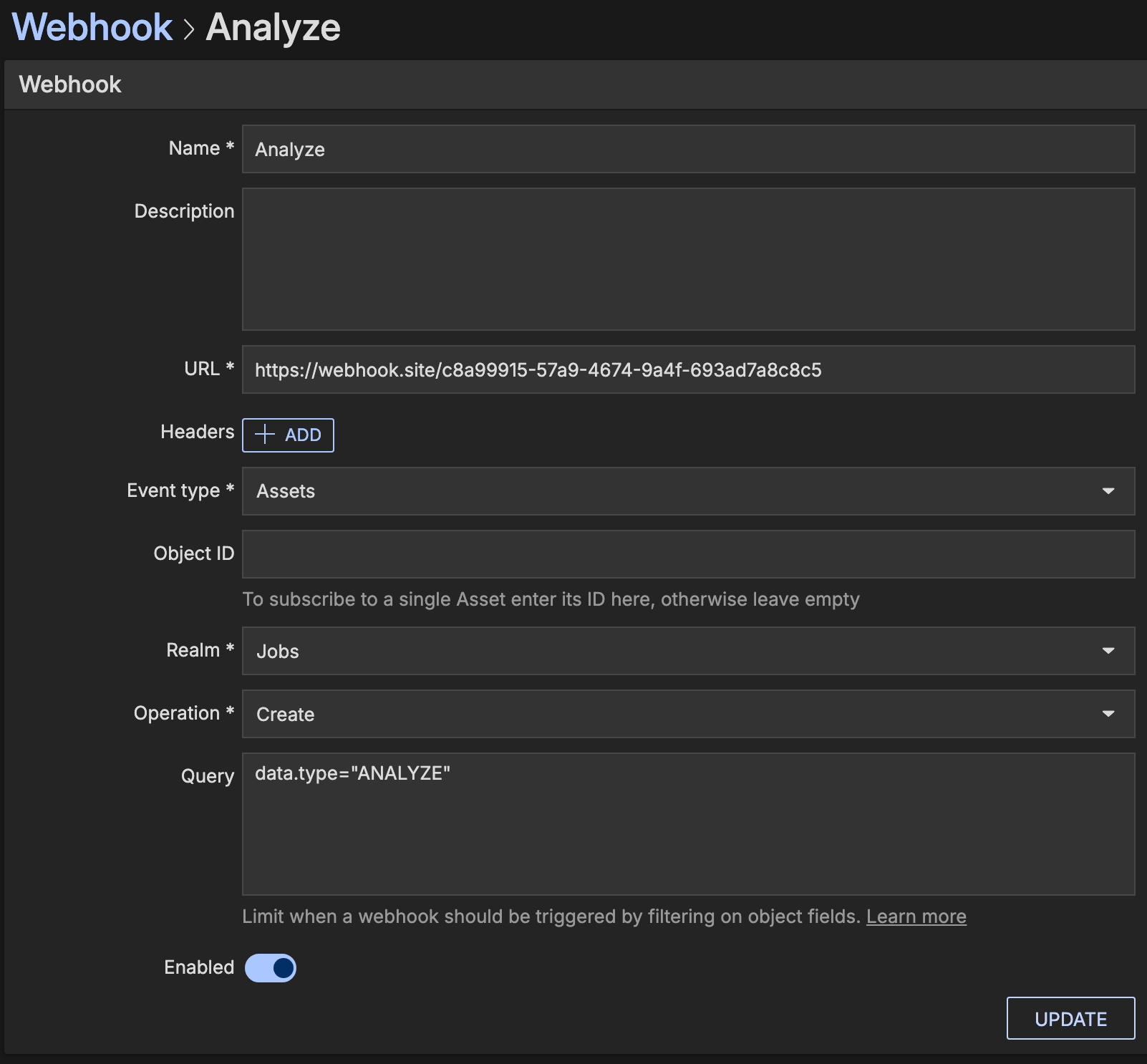
Update your webhook settings in Iconik to match: set the realm to jobs and the operation to create. This is already a significant narrowing — but it's not enough on its own.
4. Narrow it down with a query
A realm of jobs and an operation of create will catch every job creation in Iconik — transcodes, file transfers, and everything else, not just analyze jobs. To isolate analyze specifically, you need to filter on the payload content itself.
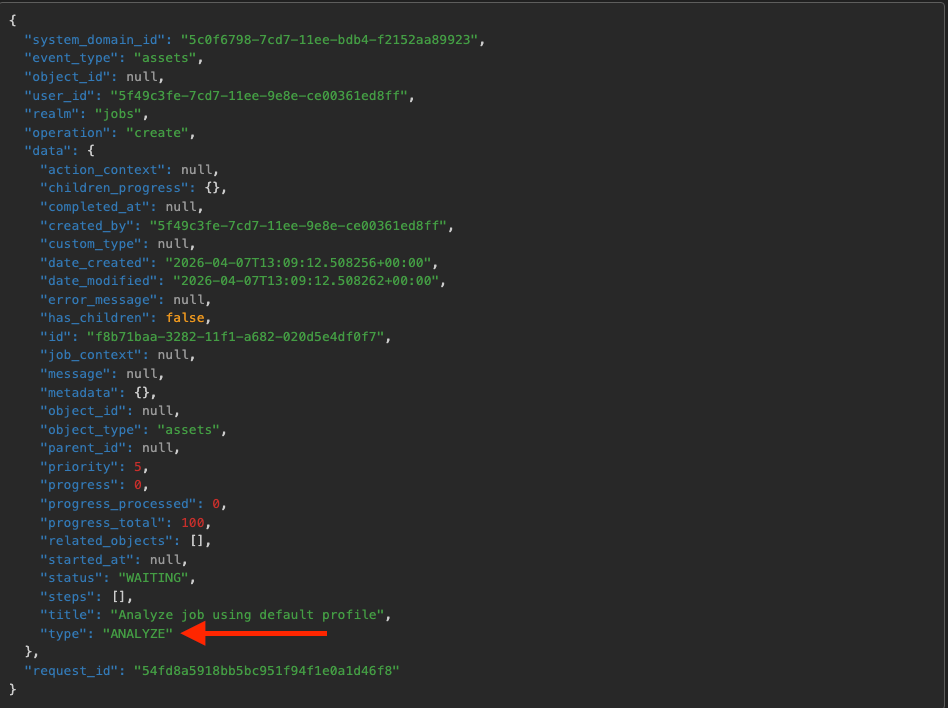
To achieve this, the Query field must be used to filter based on the JSON structure of the payload. Look at your target payload in webhook.site. You'll find the word ANALYZE attached to a type field, nested inside a data function.
Using simple dot notation, that structure can be translated into a query Iconik understands: data.type="ANALYZE".
Enter that in the Query field in your webhook settings. You've now told Iconik to fire this webhook only when a job is created, and the payload's data type is ANALYZE.
5. Verify before going live
Update the webhook with your query, clear the previous logs in webhook.site, and click Analyze one more time. This time, when you check webhook.site, exactly one event should arrive.
Once you’ve identified the exact realm, operation, and nested data fields, and you've confirmed that the webhook is firing precisely once for the right event, swap the webhook.site URL out for your production endpoint.
Everything from here is intentional.
The broader skill here transfers to any webhook configuration in Iconik. Whatever event you're trying to capture, the process is the same: catch everything first, find the unique payload, then work backward through realm, operation, and query until only that payload triggers your webhook.
It’s worth repeating: the fifteen minutes upfront beats the debugging session every time.
Where to start
- Set up a free webhook.site account before configuring any webhook that connects to a paid or production system
- When reviewing payloads, look for fields that are unique to the specific event you want —
typefields nested inside data objects are often the most precise filter point - Test the full filtered configuration with a fresh webhook.site session before swapping in your production URL; always verify the event count drops to one

Charlotte Driscoll is a Technical Account Manager at Backlight focused on helping media teams solve complex technical challenges in iconik. Her work spans storage architecture, ingest workflows, cloud integrations, transcoding, and the iconik Storage Gateway, with a strong emphasis on practical troubleshooting and customer enablement. She partners closely with customers, support, engineering, and sales teams to turn technical issues into clear guidance, scalable workflows, and reliable production outcomes.