.svg)


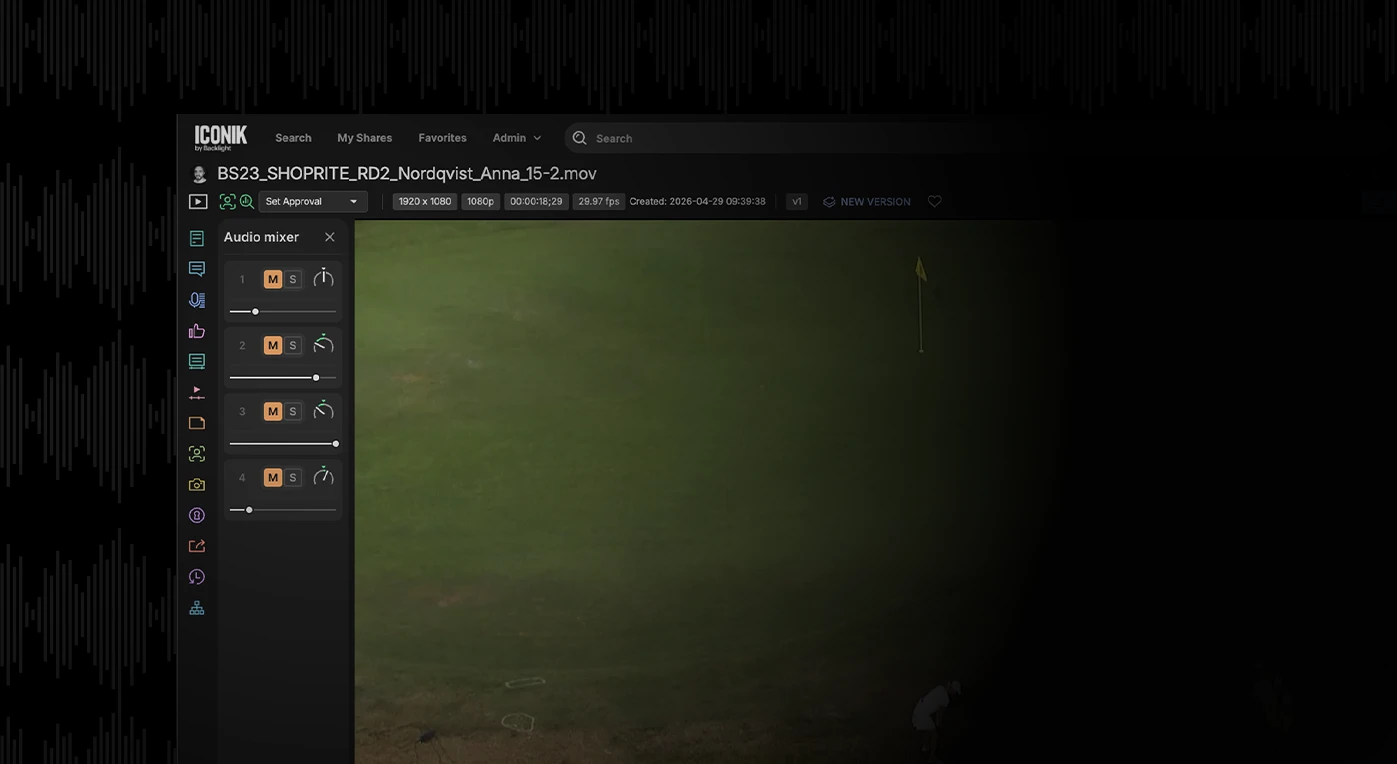
Table of contents

There's one truth that holds across every corner of media production: audiences will put up with poor video quality, but they absolutely will not put up with poor audio. Sync issues, muffled dialogue, a noisy environmental mic bleeding into the wrong channel: viewers notice immediately and move on.
Audio is critical, yet it's consistently one of the most complex elements to manage in post-production collaboration. For teams working in cloud-based MAM systems, that complexity has historically meant compromise: rich, multi-channel audio getting flattened into a stereo mixdown the moment it hits the platform.
Multi-channel audio support in Iconik changes that. This article covers how it works, how it differs from other audio formats, and how to put Iconik's audio tools to work in your review and approval workflows.
Demystifying the jargon: Multi-channel vs. multi-track
Before getting into the features, it's worth clarifying the terminology, because "multi-channel" and "multi-track" are frequently used interchangeably, even though they describe two entirely different things.
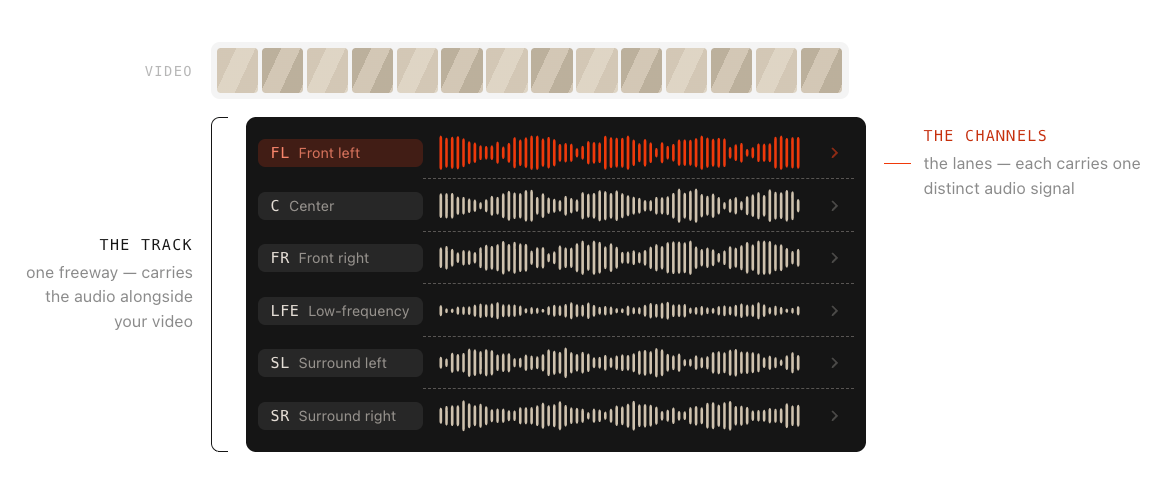
A useful way to visualize the difference: think of an audio track as a freeway.
- The track (the freeway): The overall container that carries the audio signal alongside your video.
- The channels (the lanes): The individual lanes of traffic running within that freeway, each one carrying a distinct audio signal.
A standard 5.1 surround sound mix, for example, consists of six channels (six lanes) within a single audio track (one freeway), each representing a distinct spatial signal: front left, center, right, surround speakers, and so on.
Iconik natively supports multi-channel audio within a single track, accommodating up to 16 discrete channels. It's worth noting that this first iteration does not support multi-track audio (multiple separate freeways), meaning there is no track switching.
The pain point: Moving beyond the stereo mixdown
Previously, importing a robust piece of content with six audio channels into a cloud-based MAM meant watching the system automatically mix it down to two standard stereo channels.
A stereo mix is fine for a quick web preview. But for producers and editors who need to isolate specific microphones or evaluate a complex surround mix, it creates a frustrating review experience. The distinct components of the audio — carefully captured in the field — become inaccessible. Critical listening becomes guesswork.
The power of Iconik's multi-channel tools
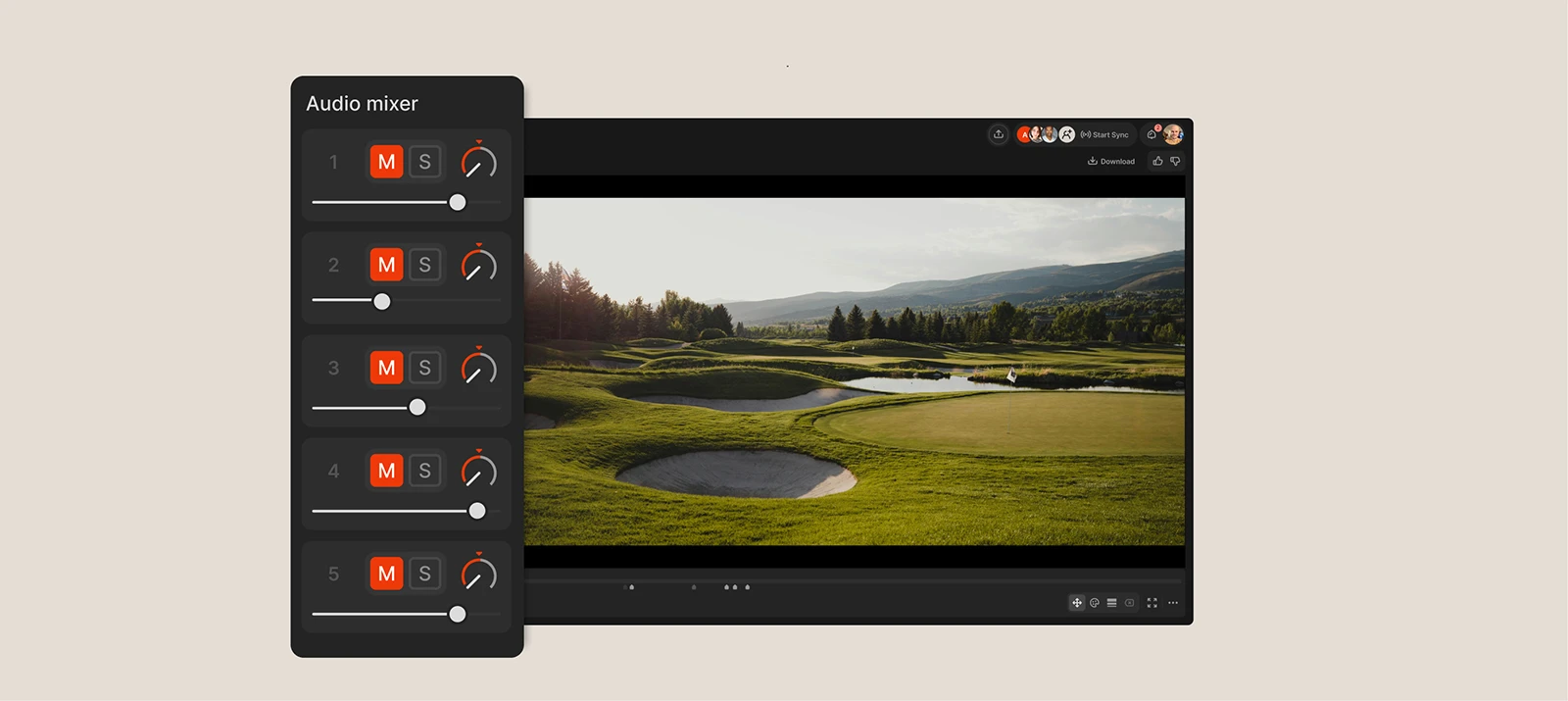
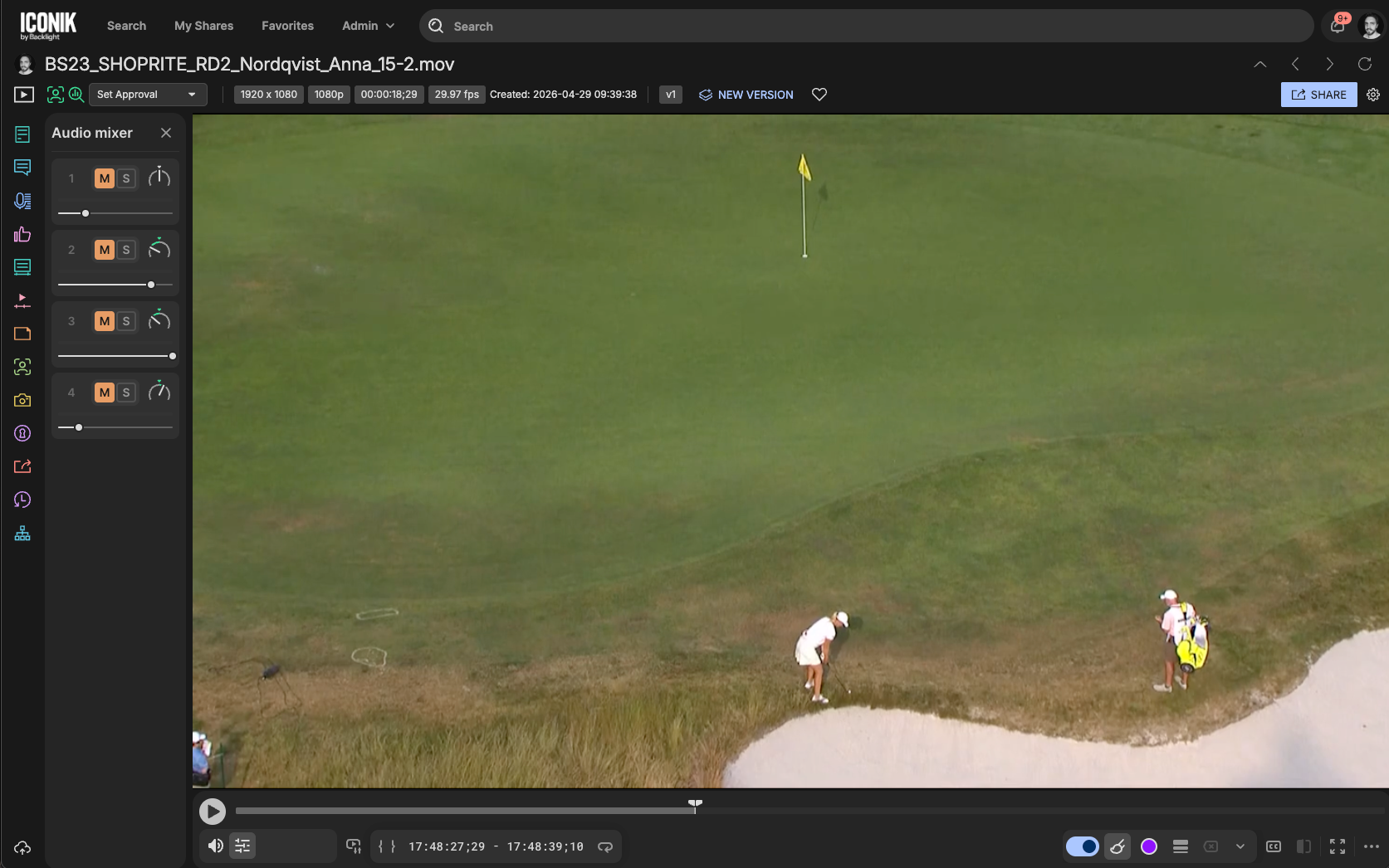
With multi-channel support in Iconik, that compromise is gone. When you open a multi-channel asset that has been appropriately transcoded, the built-in Audio Meter and Audio Mixer are accessible directly from the player menu.
Here's what you can do:
- Isolate and solo: Want to hear exactly what's happening on a specific channel, like a lavalier mic on Channel 3? Use the solo function to instantly mute everything else.
- Mute specific channels: If you have a noisy environmental channel, toggle the mute button for that channel while the rest of the audio plays normally.
- Pan controls: Full panning capabilities let you shift specific channels left or right, giving you complete spatial awareness of the mix.
Crucially, Iconik provides sample-accurate sync throughout. Whether you're playing back 2 or 16 channels, all audio streams stay perfectly synchronized with the video frames, so what you're reviewing is a true representation of the original media.
The player also remembers your mixer settings. Pan a channel to the right, navigate away to review another asset, and come back: your configuration will be exactly as you left it.
Technical implementation and best practices
Enabling multi-channel audio for your team is straightforward, but there are a few technical details worth knowing before you roll it out.
Enabling the feature
An administrator must navigate to: Admin > Transcoders > Iconik Cloud Video Transcoder and toggle on “Multi-channel audio.” Once enabled, Iconik will generate a multi-channel proxy alongside the standard stereo proxy, so you get the multi-channel audio experience while ensuring compatibility across different devices.
Browser limitation
For full 16-channel support, Google Chrome or Microsoft Edge is strongly recommended. Due to browser-level limitations outside Iconik's control, Safari and Firefox currently support up to 4 or 5 audio channels.
Transcription workflows (crucial tip!)
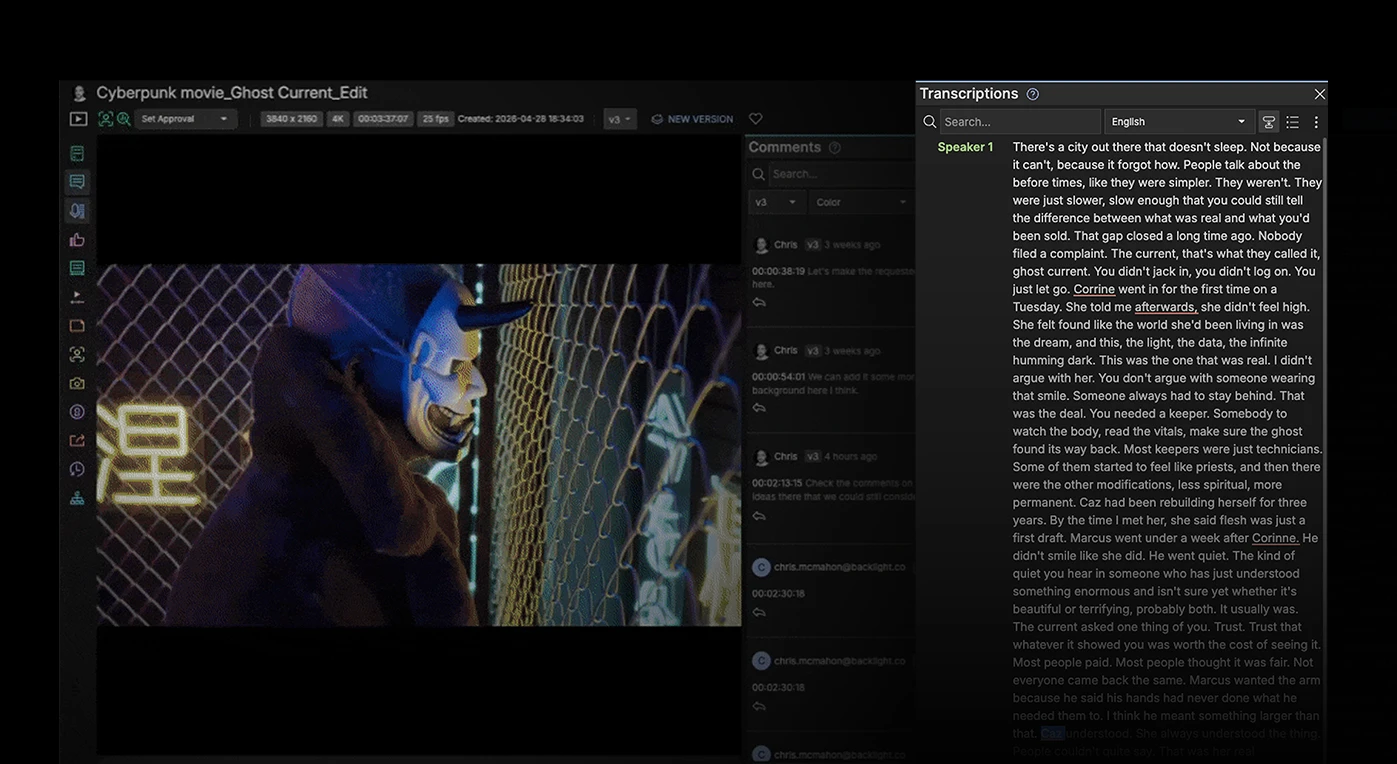
If your team relies on the Rev AI integration for automatic transcriptions, channel mapping matters. Rev AI currently scans only channels 1 and 2 for dialogue. If your primary dialogue track lives on channel 3 or 4, the transcript will come back empty. Ensure the dialogue is routed to channels 1 and 2, or use the stereo proxy specifically for AI transcription.
Multi-channel audio support means post-production teams no longer have to accept a flattened, compromised version of their media in order to collaborate in the cloud. With up to 16 discrete channels, sample-accurate sync, and persistent mixer controls, the review and approval workflow finally matches the quality of the production behind it.
Where to start:
- Multi-channel audio is enabled per domain via the Transcoders admin page: no additional configuration required beyond the toggle
- Recommend Chrome or Edge to any team member who will be working with more than four channels
- If transcription is part of your workflow, audit your channel mapping before enabling: routing dialogue to channels 1 and 2 will save your team a headache later

Zach Parker is a Solutions Architect with over 10 years of experience in media technology. He specializes in designing and optimizing cloud-based video delivery workflows for leading Media & Entertainment clients. He excels at leading pre-sales engagements, developing proofs of concept, and guiding enterprise customers from evaluation through successful production deployment.